Create and manage users
For: Administrators with USER_MANAGE. Granting ADMIN or SUPER_ADMIN also requires the actor's ADMIN_MANAGE authority. Checked: Vega v1.126.2, 8 October 2026.
Open Admin Console → Users. Adding a user sends an activation invitation to the entered address. Check the address and intended access before saving.
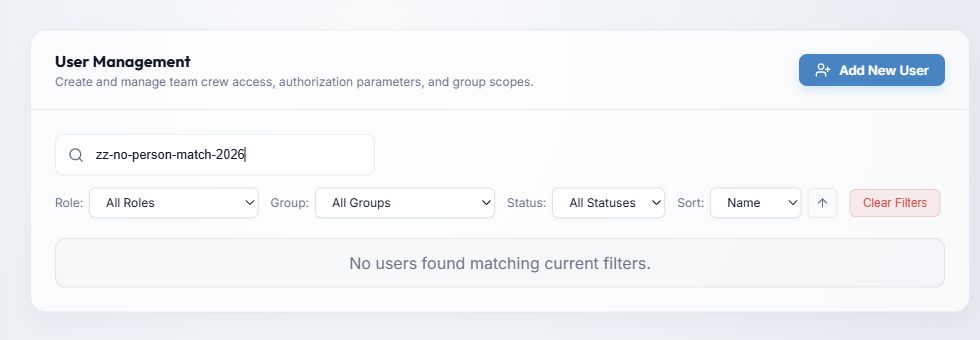
- Add New User opens the account form.
- Search by name or email narrows the list. The example uses a search that matches nobody so no identity appears in this public guide.
- Role, Group, and Status filters can be combined. Status offers All Statuses, Active, Invited, and Suspended; Group includes No Group. Clear Filters returns to the unfiltered list.
- Select a table heading to sort by Name, Email, Status, or Created At; select it again to reverse the order. In the compact layout, use Sort and its direction control. Page controls move through longer lists.
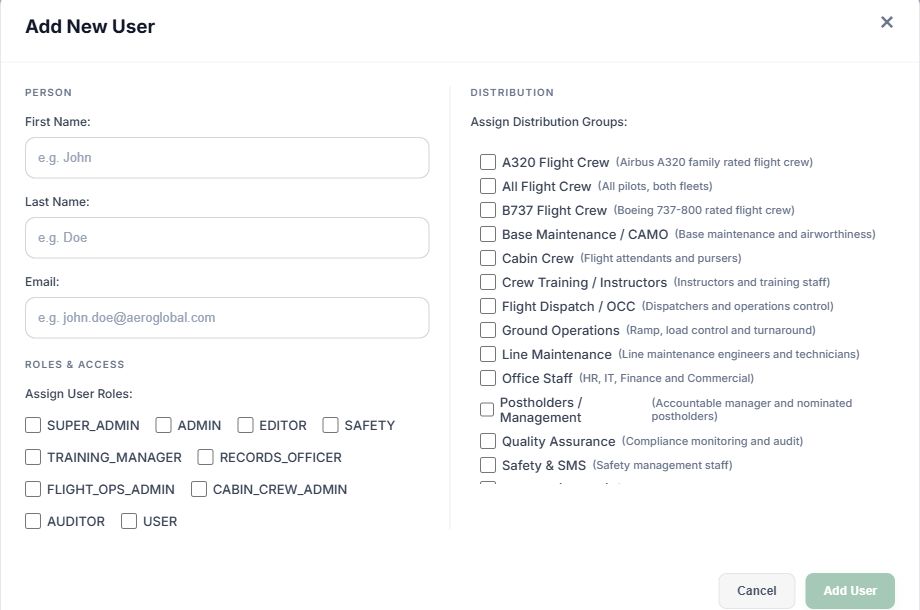
- Enter First Name, Last Name, and Email. All three are required; the email is the invitation destination and account identifier.
- Select at least one Role. Choose actions the person needs; a role alone does not add them to a document audience. Only a super administrator with the relevant authority can grant the admin roles.
- Select Distribution Groups for document access. Adding a person to a group may create new obligations for documents already distributed to it. See distribution groups.
- The other role choices continue below the first line; choose the required combination before saving.
- Choose Add User to create and invite, or Cancel to close without saving. Vega may ask you to review a same-name account before continuing; verify the email rather than assuming it is the same person.
For an EDITOR, the new-user form starts with restricted document sections. Create the account, then Edit user to choose allowed library sections or all sections. With no selected sections, the editor can read but cannot edit library content.
Edit, resend, suspend, or delete
In a user row, Edit user changes account details, roles, groups, and available role-specific scope. A TRAINING_MANAGER can be limited to pilot and/or cabin disciplines after account creation. Save the form to apply changes; closing it discards unsaved edits.
Resend invitation appears for an invited user and sends a fresh activation link valid for 24 hours. Invited means an activation link was sent but the person has not signed in. Active means access is enabled and the user has signed in. Suspended means an administrator has disabled access.
Suspend account opens a confirmation. Confirming blocks access immediately and revokes the active session while preserving historical logs. Use Activate account to restore access. For a temporary departure, suspension is the reversible choice.
Delete account is permanent. The dialog requires the account's exact email before enabling Permanently Delete Account. Read its warning: related historical acknowledgement/signature records can be removed. Use it only when that permanent result is intended.
When an edit adds group membership, Vega can show Notify New Members? with a preview of newly inherited documents. Choose to send a message, optionally enter explanatory text, or choose Don't Notify and enter a reason. Skipping the notification is recorded in the audit trail; it does not erase the document obligations. Check the preview before deciding.
Troubleshooting
- If an account cannot see a feature, check its role, section scope, distribution groups, licence, and external-organization restrictions separately. Use the Permissions Matrix for role actions.
- If an invitation expired, use Resend invitation. Confirm the address and the company's email delivery status if it does not arrive.
- If a save rejects a duplicate email, find and edit the existing account instead of creating another identity.