Build a weekly crew planning draft
Who can use this: Crew planners with Create and publish crew rosters access. Last verified: Vega local demo v1.126.2 and current planning forms, 8 October 2026.
Choose the week at the top of Crew Planning. The arrows move a week, Today returns to the current UTC week, Jump to schedule date selects the date's week, and Focus mode expands the workspace. Changes in Duties, Flights, and Unavailable update the draft. A published revision remains available until another revision is released.
1. Record a duty
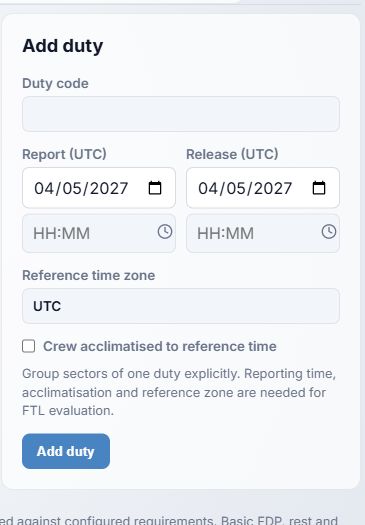
- Open Duties → Add duty. Give the duty a unique Duty code, then enter Report and Release dates and times in UTC. The date starts at the selected week's Monday; time fields start blank. The small clock buttons fill the current time, which you should check before saving.
- Enter Reference time zone. A new duty starts at UTC. Tick Crew acclimatised to reference time only when verified; it is unchecked by default. These values affect the displayed FTL evaluation.
- Choose Add duty. To correct a duty, select its row, edit the fields, choose Save duty, or choose Cancel to leave edit mode. The row shows the number of attached sectors and any duty findings. One duty can group multiple sectors.
2. Add and assign a flight
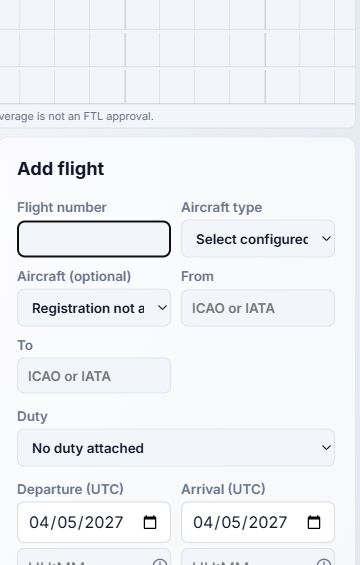
- Open Flights. Enter required Flight number, configured Aircraft type, From, To, Departure (UTC), and Arrival (UTC). From/To accept IATA or ICAO codes and are converted to uppercase. The date starts on the selected week's Monday; enter both UTC times explicitly, including the correct arrival date if it crosses midnight.
- Aircraft (optional) starts at Registration not assigned and lists active aircraft of the selected type. Duty starts at No duty attached; select the explicit duty you created. A flight without a duty can remain a draft, but prevents roster publication.
- Choose Add flight. Select its row or calendar/timeline block to open the detail card. Edit loads it into the form; Save flight applies changes and Cancel leaves editing. Add another flight clears the selected flight and returns to a blank form.
- In the flight card, choose an assignment Role, then an active Crew member and Assign. The person list is filtered by role category. Repeat until the operator-approved complement is complete. The × Remove control beside an assignment removes it from the draft. Cancel flight asks for confirmation and removes the flight from the draft; previously published revisions remain unchanged.
The schedule offers Table, Calendar, Timeline, and Crew timeline; search and type filters narrow what is visible. Needs attention shows flights with missing coverage or a block. Table Date reverses sort order; Timeline zoom is 1×–3×. These controls change your view, not the plan.
3. Record an unavailable period
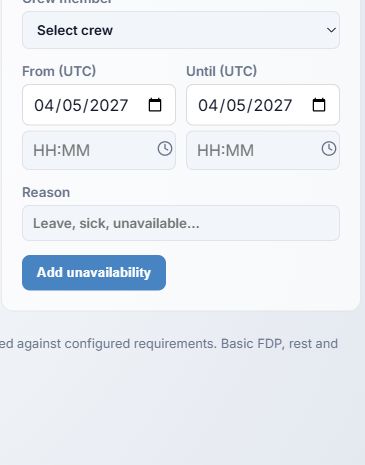
- Open Unavailable. Select a Crew member and set From (UTC) and Until (UTC) dates/times. Enter a short Reason, then select Add unavailability. New date fields start at the chosen week's Monday and times are blank.
- Review the listed periods. An absence blocks overlapping assignments. Remove deletes a recorded period; review affected flights afterward. Use a neutral absence label when the detail is not needed for scheduling.