Review internal groups and export a group report
Who can use this: Users with Company Compliance view permission. Last verified: Vega local demo v1.126.2, 8 October 2026.
- Open Compliance and select Internal. The first group in the alphabetic list is selected initially.
- Choose a card under Group Compliance. The card shows the group's description, active user count, number of required documents, pending acknowledgements, and percentage. The panel on the right now shows that group's members.
- Use All users, Fully compliant, or Not compliant to filter the member list. Fully compliant means this member has no pending document in this group. It includes a person with zero required documents. Not compliant means at least one pending document. This filter also applies to the group CSV and PDF downloads.
- Type a first name, last name, or email in Search users to narrow the on-screen list. This search does not narrow a CSV or PDF export; clear the search or rely on the status filter before exporting.
- Click User to sort by name; click again to reverse the order. Click Compliance to show the lowest percentages first; click again for the highest first. Sorting changes the on-screen order, not the downloaded report order.
- Select CSV for a spreadsheet file or PDF for a formatted group report. Both use the selected group and status filter. CSV includes name, email, roles, active status, required, signed, pending, and percentage. The PDF headline remains the full group's rate even when its member list is filtered.
- Click a member row, or focus it and press Enter/Space, to open their full acknowledgement history. See Review one person's obligations.
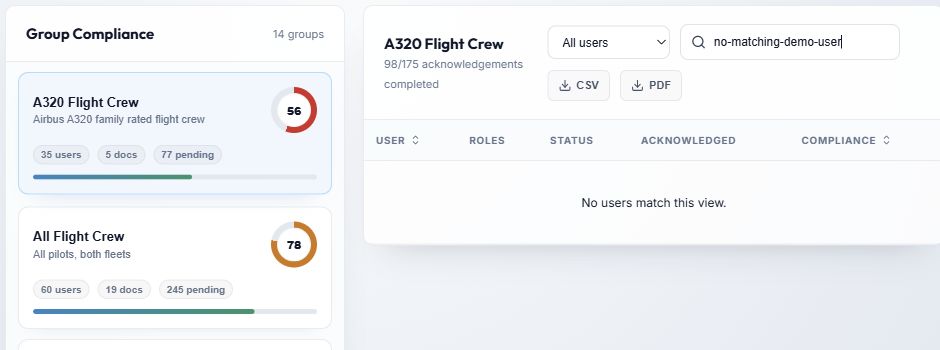
- The group cards change the selected group; the coloured ring is its acknowledgement percentage.
- The status selector controls both the visible rows and the member subset in the two exports.
- Search users affects only the visible rows. This example intentionally has no matching person so identities are absent from the screenshot.
- CSV and PDF export the selected group. The Export PDF at the top of the page exports the whole company instead.
- User and Compliance headings sort the table. Roles, Status, and Acknowledged describe each row and are not sort buttons.
Pagination and result states
The list starts at 20 rows per page unless you previously chose another size on this device. Per page offers 10, 20, 50, and 100; the choice is remembered for your account in this browser. Use page numbers or Previous/Next to move through the list. Changing group, filter, search, or sort returns to page 1. No users match this view means the selected group/filter/search combination has no visible rows; check the filter and search text before assuming there are no obligations.
For one document's recipient evidence, use Document read tracking. Group Compliance answers a different question: how each group member is progressing across that group's required documents.