Check notice read tracking
For: Notice managers (NOTICE_MANAGE)
Before you start: Open Notices → Manage and find a published or archived notice.
Last checked: 7 October 2026, fictional local demo v1.126.2 and current Notices code
Read tracking shows the current audience and each person's acknowledgement, deadline, and latest notice-email result. It is available from an active or archived row; a draft has no read-tracking button. Treat the table and CSV as personal information and share them only through your approved company process.
Open and interpret the report
- Select the row's Read tracking chart icon. The dialog heading identifies the notice (Figure 1, 1).
- Read the four summary cards: Audience (2) is the number of currently matching recipients, Acknowledged (3) have signed the current version, Overdue (4) have an unsigned past-due obligation, and Read rate (5) is acknowledged divided by audience. When the audience is zero, the interface displays 100% by convention; check the audience count before interpreting that figure.
- If Vega shows a failed-delivery warning, use Not delivered to inspect recipients whose last notice email failed. An email marked Sent means the mail service accepted it; it does not prove the person read the notice. A dash means there is no recorded notice email result.
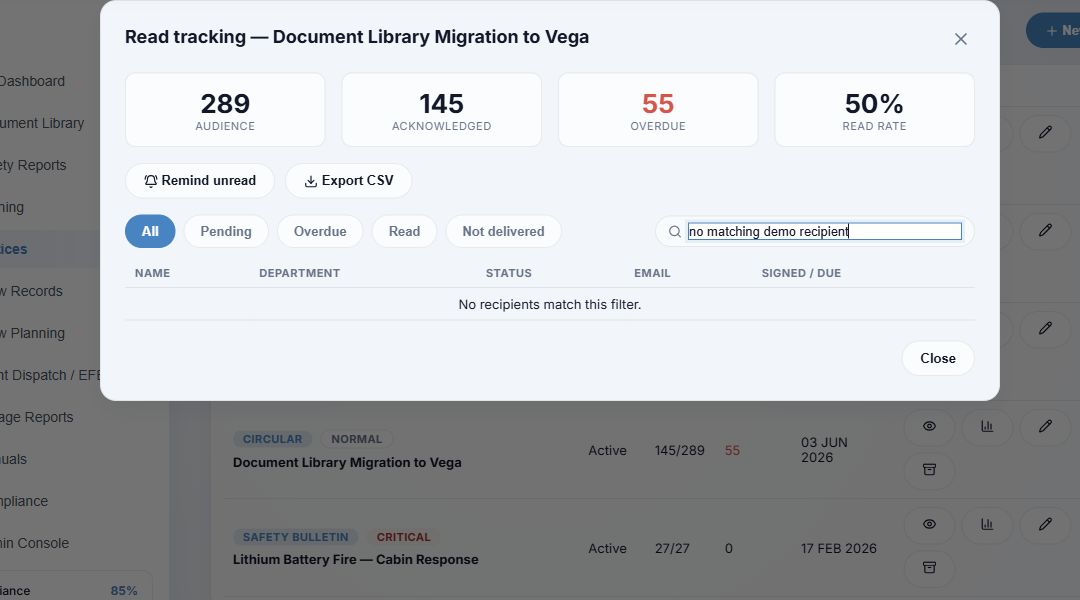
Figure 1. 1 — Report title. 2 — Audience. 3 — Acknowledged. 4 — Overdue. 5 — Read rate. 6 — Remind unread. 7 — Export CSV. 8 — Status filters. 9 — Search. 10 — Recipient table. 11 — Close. The search has been set to an unmatched phrase solely to keep people and email addresses out of this public screenshot; clear it to see actual recipients.
Filter the recipient table
- Choose All, Pending, Overdue, Read, or Not delivered (Figure 1, 8). Pending means no current-version acknowledgement and can include overdue recipients. Overdue is the subset past its due time. Not delivered is based on failed email delivery, which is separate from acknowledgement status.
- Use Search name, email, department… (9) to narrow the table. The status filter and text search work together. If no row matches, the table says No recipients match this filter. Clear the search or select All to broaden it.
- Read each row's Name, Department, Status, Email, and Signed / Due columns (10). Read means acknowledged; Pending and Overdue mean the current version remains unsigned. The Email column shows Sent with a time, Not delivered (hover for the stored error where available), or a dash. Signed / Due shows the acknowledgement timestamp or due date. External people have (ext) beside their name.
- Use the report's Previous page, page numbers, Next page, optional Go to, and Per page below the table when the filtered audience spans multiple pages. These controls page through the current filter, not through the manager list.
Remind or export
- Remind unread (6) appears only while the notice is Active and requires acknowledgement. It sends a reminder to all currently matching unsigned recipients, regardless of the table's status filter or search text. It can send email; inspect the full audience before selecting it. The result message reports the number attempted or says nobody remains. This manual action is separate from the scheduled reminder setting.
- Export CSV (7) appears beside Remind unread under the same conditions. The CSV contains the full current recipient report, not the filtered screen subset: name, email, department, internal/external membership, status, signed and due times in UTC, and email-delivery result. The file may contain personal information.
- Select Close (11) or the top-right × to leave the report. The report does not acknowledge the notice on anyone's behalf.
The Manage table's Read and Overdue columns give a quick summary. For scheduled reminder limits and signature wording, see Notice settings and access.