Move a document to Trash and restore it
For: Document controllers with edit access to the document's section; permanent deletion requires document-purge permission
Before you start: Find the document and check its title and folder.
Last checked: 7 October 2026, fictional local demo v1.126.2 and current deletion code
Delete Document first opens a dialog. In the current single-folder setup, its normal action is Move to Trash. A legacy document filed in several folders can instead be removed from the current folder while remaining in its other folders.
Remove or trash a document
- Select the document's Delete Document icon. Read the document title in the dialog before proceeding.
- If Choose Action appears, select Remove from current folder only to unlink a legacy multi-folder document, or Move to trash (removes from all folders) to remove it from the active library. The first option is available only when the document is in multiple folders and you opened one of them; it starts selected there.
- Read the warning (Figure 1, 1). Moving to Trash removes the document from the library and compliance reports. It can still be restored before its scheduled purge.
- Select Move to Trash (2) or, for the unlink choice, Remove from Folder. Cancel or × closes without changing the document. Confirm that the item no longer appears in that location.
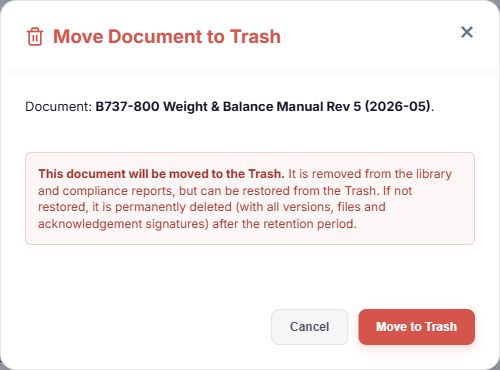
Figure 1. 1 — Consequence: the document leaves the active library and is later purged if it stays in Trash. 2 — Move to Trash: commits the move. Cancel and × leave it in place.
Restore from Trash
- Select Trash in the library toolbar. It is visible to document managers.
- Find the document. A row shows its deletion date, version count, signature count, and scheduled auto-purge date. Use the page controls if needed.
- Select Restore (Figure 2, 1). Vega refreshes the Trash and library list. Search the active library for the document to verify that it returned.

Figure 2. 1 — Restore: brings the trashed document back. 2 — Delete permanently: appears only with document-purge permission and opens a further irreversible confirmation. Use the × in the Trash header to close the window.
Trash retention is configured by the company or deployment. Use the row's auto-purge date rather than assuming a universal retention period. The system permanently removes a document left in Trash after that date, including its versions, files, and acknowledgement signatures; an audit snapshot is kept. Delete permanently does the same earlier and cannot be undone. It is restricted to a user with document-purge permission and has its own confirmation dialog. Verify the document and retention need before using it.
If a folder itself must be removed, see Manage folders: folders can be deleted only when empty. Remove from Folder and Move to Trash have different effects; read the chosen action in the dialog before confirming.