Control library access and document settings
For: Company administrators and document controllers who need to understand access rules
Before you start: Open your company's Vega portal. Changing user access or company settings requires an administrator account.
Last checked: 7 October 2026, fictional local demo v1.126.2 and current admin UI
Library access has three separate parts: the permission to read a document, the permission to manage documents or folders, and the groups or individuals to whom a document is distributed. An EDITOR can still be restricted to particular library sections. The settings below apply company-wide; the numbers in the screenshots are examples from one fictional demo, not universal Vega defaults.
Assign an editor's sections
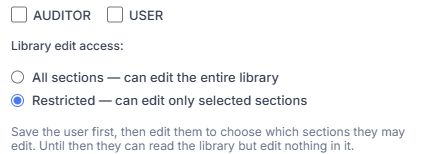
Figure 1. 1 — All sections: lets this editor manage documents across the library. 2 — Restricted: limits editing to selected sections. 3 — New-user notice: save a new restricted editor first, then reopen the account to choose sections; until then the person can read but cannot edit anywhere.
- In Admin Console → Users, open a user with Edit user or choose Add New User. Under Assign User Roles, select EDITOR when the person should manage library content. This role is separate from Assign Distribution Groups, which determines membership in an audience.
- Under Library edit access, choose All sections — can edit the entire library or Restricted — can edit only selected sections (Figure 1). A new editor starts restricted; a new restricted account must first be saved and then reopened before sections can be selected.
- For an existing restricted editor, select Choose sections (… selected). Select the parent sections the person should manage, then apply the picker and save the user. Selecting a section also includes its nested folders, including future ones. An editor with 0 selected can read the library but has no upload, folder, or document edit controls anywhere; the user form warns about this before saving.
- Check the library while signed in as the intended editor, or ask that editor to reopen it. New Folder and Upload Document should appear inside an assigned section. A restricted editor may still read other sections without managing their content.
Access to Acknowledgement report, Revision history, and Delete permanently is controlled by separate permissions. Administrators can inspect the live Admin Console → Permissions Matrix; the relevant permissions are COMPLIANCE_VIEW, DOCUMENT_UPLOADER_VIEW, and DOCUMENT_PURGE. Do not grant a broader role merely to make one button visible without checking the other rights it includes.
Set acknowledgement reminders
Open Admin Console → Settings → Document Control. Change a field, then check that the page reports Saved. These settings affect all documents in the company that match the described condition.
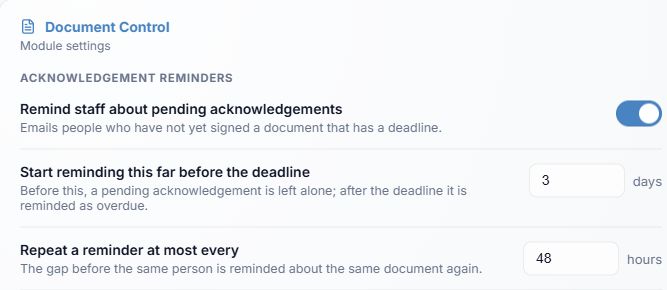
Figure 2. 1 — Remind staff about pending acknowledgements: enables email reminders for unsigned documents with a deadline. 2 — Start reminding this far before the deadline: how early reminders begin. 3 — Repeat a reminder at most every: minimum interval for the same person and document. Deadline-free nudges are shown in Figure 3.
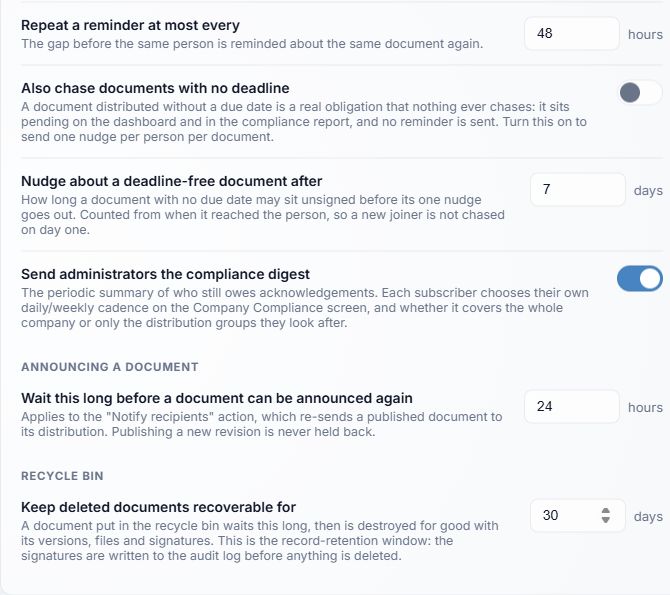
Figure 3. 1 — Deadline-free nudge and delay: one nudge per person and document, counted from assignment. 2 — Compliance digest: allows subscribed administrators to receive the periodic summary; each subscriber selects their cadence and scope on Company Compliance. 3 — Announcement interval: minimum wait before using Notify Recipients again for the same document; a real new revision is not held back. 4 — Trash retention: how long a deleted document remains recoverable before permanent removal.
| Setting | What it controls | Value shown in the fictional demo |
|---|---|---|
| Remind staff about pending acknowledgements | Turns deadline-based email reminders on or off. | On |
| Start reminding this far before the deadline | Begins reminders this many days before the due date; afterwards the item is overdue. | 3 days |
| Repeat a reminder at most every | Minimum gap between reminders to one person for one document. | 48 hours |
| Also chase documents with no deadline | Enables a single email nudge for a pending item without a due date. The dashboard and report still show the obligation when this is off. | Off |
| Nudge about a deadline-free document after | Waits this many days after the document reaches a person before that one nudge. | 7 days |
| Send administrators the compliance digest | Enables the digest for administrators who subscribe on Company Compliance. | On |
| Wait this long before a document can be announced again | Limits the Notify Recipients action for the current revision. | 24 hours |
| Keep deleted documents recoverable for | Sets the Trash retention period. Use the scheduled auto-purge date on each Trash row for an individual document. | 30 days |
Turning reminders off does not remove acknowledgement assignments or change due dates. Email delivery is also separate from a person's signature. See Upload and distribute, Read tracking, Notify recipients, and Trash and restore for those workflows.