Set up fleet and crew for planning
Who can use this: Crew planners with Create and publish crew rosters access. Last verified: Vega local demo v1.126.2 and current planning forms, 8 October 2026.
Configure an operator-approved crew complement and a planning crew directory before assigning flights. These settings are shared planning data, so check your operator's rules before saving a change.
Fleet types and aircraft
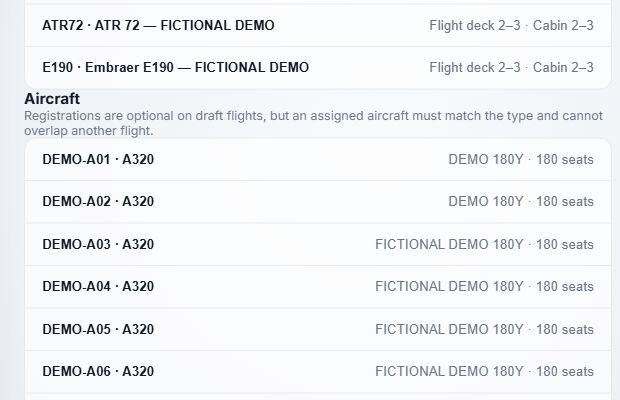
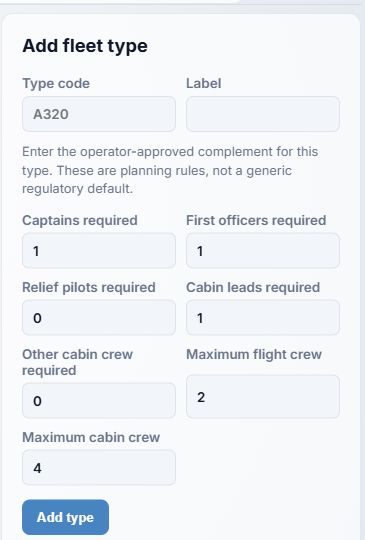
- Open Crew Planning → Fleet settings. Select an existing fleet type to edit it, or use Add fleet type. Type code is required and converted to uppercase; Label is required. The screen lists the configured minimum–maximum flight deck and cabin complement for each type.
- Enter Captains required, First officers required, Relief pilots required, Cabin leads required, Other cabin crew required, Maximum flight crew, and Maximum cabin crew. The new form starts at 1, 1, 0, 1, 0, 2, and 4 respectively. These are form starting values, not approved limits for your fleet. Each field permits 0–40; set actual operator-approved values, then choose Add type or Save type. Cancel leaves an edit without saving.
- Under Aircraft, select an existing row to edit or use Add aircraft. Select a configured Fleet type, enter the required Registration, and optionally enter Cabin configuration and Passenger seats (the new form starts at 0 seats). Choose Add aircraft or Save aircraft. Selecting a different aircraft type on a flight clears its previous registration selection. A registration is optional while drafting a flight; if assigned, it must match the type and must not overlap another flight.
The displayed DEMO-* registrations are fictional. Your company's type, registration, configuration, and seat data will differ.
Qualification rules
- Under Required qualification, select Fleet type and Applicable role. The role choices are ALL FLIGHT, ALL CABIN, CAPTAIN, FIRST OFFICER, RELIEF PILOT, CABIN LEAD, and CABIN CREW; the new form starts at ALL FLIGHT.
- Enter Exact Crew Records name and choose Add requirement. The evidence with that name must be in Crew Records and valid through the flight's arrival. Review spelling and scope carefully; the check uses the configured name and role.
- Use Remove beside a rule when it no longer applies. Removing a requirement changes future planning checks; confirm the operator-approved replacement first. If Crew Records is unavailable, the screen warns that qualifications require manual verification.
Crew directory and personal roster link
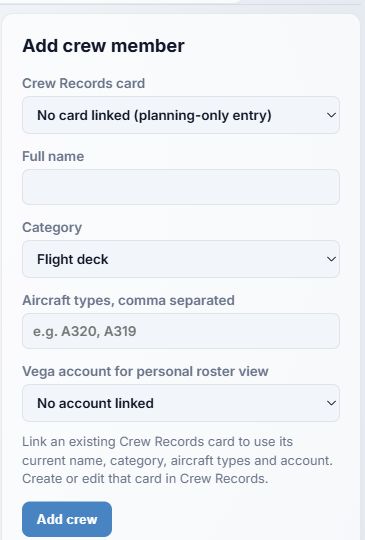
- Open Crew. Select a person to edit, or use Add crew member. If the person has a Crew Records card, select it. The card supplies their current name, flight deck/cabin category, aircraft types, and linked account; edit those facts in Crew Records. The linked fields are locked here.
- For a planning-only entry, leave No card linked, enter Full name, choose Flight deck or Cabin, and list rated Aircraft types, comma separated. The new form starts in Flight deck with no type or account. Select Vega account for personal roster view if the person must see own assignments.
- Choose Add crew or Save changes. Cancel discards an edit. A crew member without an account link can be scheduled, but cannot identify those flights as my assignments in the personal published roster.
Next: Build the weekly draft.