Sign in and navigate Vega
For: All users
Before you start: Your company has given you a Vega account and the address of its portal.
Last checked: 7 October 2026, local fictional demo v1.126.2
Use your company's Vega portal for your work. This public help site is available without signing in, but it does not contain your company's documents or notices.
Sign in
- Open the portal address supplied by your company.
- Enter your Corporate Email (Figure 1, 1) and Password (2).
- Leave Remember password (3) clear on a shared device. Where supported, selecting it asks the browser's password manager to offer to save the password after sign-in. It starts clear by default; some browsers do not show it.
- Select Secure Authorization (5). The button reads Verifying Credentials... while Vega checks the account. A successful sign-in opens My Dashboard.
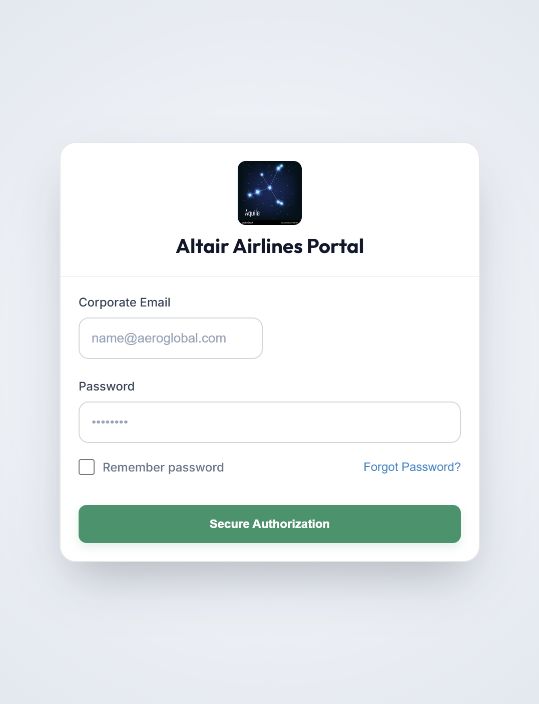
Figure 1. 1 — Corporate Email: use the account address your company registered. 2 — Password: enter your account password. 3 — Remember password: optional browser password-manager request. 4 — Forgot Password?: opens the reset form. 5 — Secure Authorization: submits the sign-in form. No password is visible in this example.
If a message appears above the form, read it and check the email and password before trying again. If your account has not been activated or you cannot access the portal, contact your company's Vega administrator.
Reset a forgotten password
- On the sign-in form, select Forgot Password? (Figure 1, 4).
- Enter your Corporate Email (Figure 2, 1) and select Send Reset Link (2).
- Check that mailbox and follow the link in the message. The form confirms the request without revealing whether an account exists for that email address.
- Select Back to Login (3) to return to the sign-in form. Use the new password after the reset is complete.
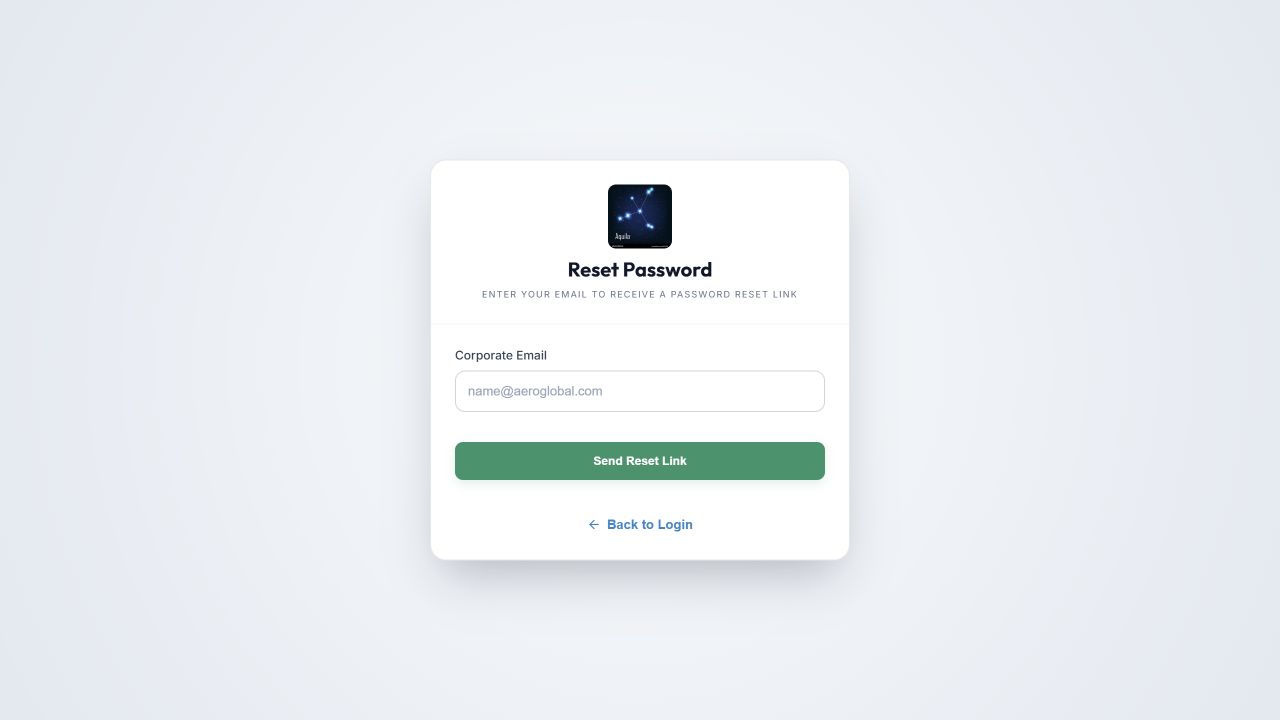
Figure 2. 1 — Corporate Email: the address registered in Vega. 2 — Send Reset Link: requests an email; it does not reset the password on this screen. 3 — Back to Login: returns to sign-in. If the email does not arrive, check your spam folder, then ask your company administrator to check your account address.
Find a section
After sign-in, My Dashboard shows pending documents and notices. Select an Acknowledge shortcut there to open the item for reading; the shortcut itself does not record acknowledgement.
On a wide screen, the menu is at the left. On a narrow screen, select the menu button in the top-left corner to open it. Select a section to enter its workspace.
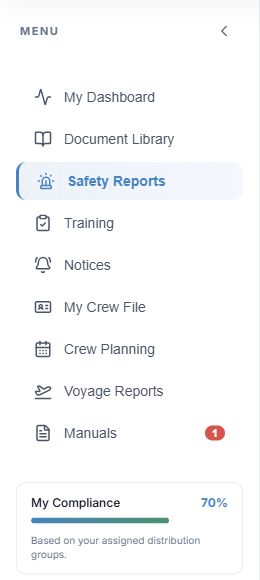
Figure 3. 1 — My Dashboard: assigned work and due dates. 2 — Document Library: folders, search and document History. 3 — Notices: current notices and any waiting for your acknowledgement. 4 — My Compliance: a summary of your assigned document acknowledgement activity; it is not an assessment of the airline's regulatory compliance.
The menu reflects your company's enabled modules and your permissions. For example, crew may see My Crew File, while a records manager sees Crew Records. The header's tablet button opens the crew tablet client when allowed; Flight Dispatch / EFB is a separate ground workspace. If a section is missing, see Why a module or action is missing.
Sign out
Select the button titled Log Out Session at the top right when you finish. Always sign out on a shared device. Closing the help site does not sign you out of your company portal.