Safety recipients, divisions, settings and access
For: SMS staff managing recipients; administrators managing company settings and divisions
Last checked: 7 October 2026, fictional local demo v1.126.2 and current source
The public help site explains controls that appear in different roles. Recipients belongs to the Safety Reports view for SMS staff; company settings and division codes are in Admin Console → Settings → Safety Reporting for administrators. Values shown below are shipped defaults, which an airline can change within the permitted range.
SMS notification recipients
Select Safety Reports → Recipients.
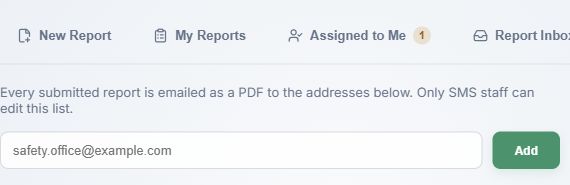
- Enter a valid email address in the field and select Add, or press Enter. The address is normalised to lowercase and added to the visible list; this alone does not save the list.
Use the trash button beside an address to remove it from the working list. Select Save Recipients to store all additions and removals; Saved confirms completion. Duplicate or malformed addresses show an error. The server accepts at most 20 unique addresses.
Every new report is stored as a PDF and sent to the saved list. If it is empty, reports are still stored but no submission email is sent. Check the list before relying on email delivery.
This recipient list also receives SMS notifications when all assignees have responded. Assignment emails go to the selected assignees, and closure emails go to the linked submitter.
Company settings: reminders
In Admin Console → Settings, choose Safety Reporting in the settings navigation. Edit a value and select the top Save changes button. The button reads Saved when there is nothing pending.
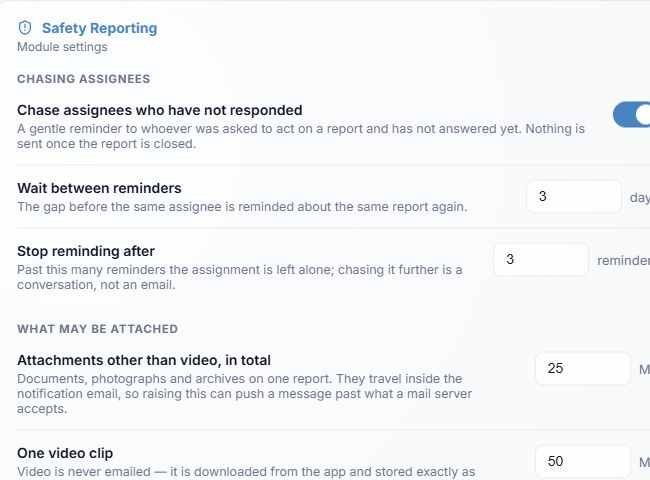
- Chase assignees who have not responded is on by default. Turning it off stops scheduled follow-up emails; closing a report stops them regardless of this switch.
- Wait between reminders defaults to 3 days and accepts 1–30 days.
- Stop reminding after defaults to 3 reminders and accepts 1–10. After the maximum, use direct contact or a documented on-behalf response as appropriate.
These reminders concern unanswered safety assignments, not employees who have not submitted a report.
Company settings: evidence limits
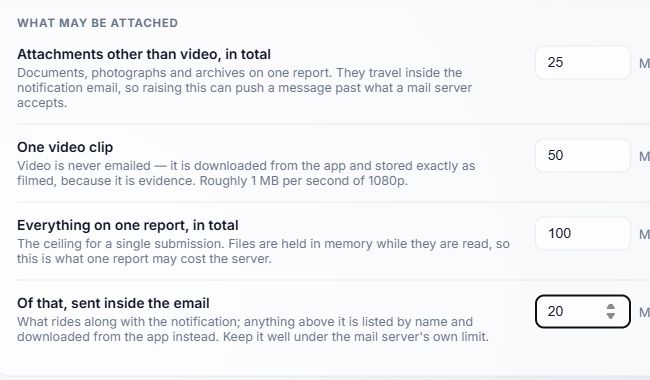
- Attachments other than video, in total: 25 MB default; range 1–100 MB. This combines documents, images and archives on one submission.
- One video clip: 50 MB default; range 1–200 MB. Video is downloaded in Vega and is never emailed.
- Everything on one report, in total: 100 MB default; range 1–300 MB. This is the total upload ceiling for one submission or response.
- Of that, sent inside the email: 20 MB default; range 1–40 MB. Files above the email allowance are listed for portal download rather than attached to the message. Mail-server limits may be lower.
The current report and response forms still display fixed client hints of five files, 25 MB non-video, 50 MB per video and 100 MB overall. The server enforces company-configured limits. When changing these values, check the result with a small disposable upload and tell reporters the applicable policy; a changed server value may not be reflected in the form hint.
Maintain the Division list
The Safety report divisions panel sits below the settings values. Its changes are saved by each panel action, independently of the top settings button.
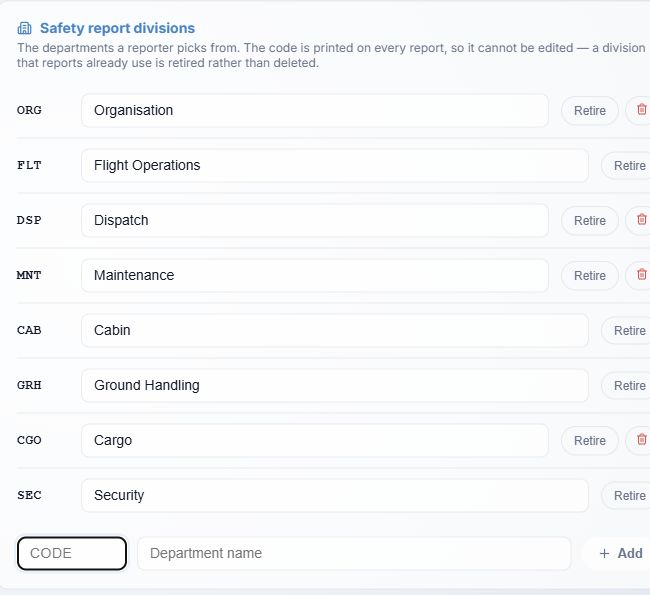
- The code is the stable identifier printed on reports and stored with them. It cannot be edited after creation. The shipped starting list is ORG, FLT, DSP, MNT, CAB, GRH, CGO and SEC; each airline can maintain its own list.
- Edit a division name and leave the field to save the new name. The code remains the same.
- Retire removes the division from new report forms but keeps historical reports readable. Use again reactivates a retired division. At least one division must stay active.
- The trash icon appears only when no report uses the division. It deletes that unused division. A used division must be retired instead.
- Enter a new CODE of 2–10 letters or digits and a Department name, then select Add. Re-adding a retired code reactivates it.
Who can see what
| Role or access | Safety view |
|---|---|
| Reporter with module access | New Report, My Reports and their own drafts. |
| Any user with an assignment | Assigned to Me and only their own de-identified tasks. |
| SAFETY staff | Report Inbox, processing actions and Recipients, in addition to reporter views. |
| System owner without SAFETY | Technical report counts only; no normal inbox content. Break-glass: grant myself SAFETY access is an emergency, audited role grant that immediately notifies every saved safety recipient. |
| Administrator with company-settings access | Safety Reporting settings and division catalogue in Admin Console. This does not by itself grant access to confidential report content. |
If a tab or action is missing, check your active role, assigned task and the module's availability with an administrator. Emergency break-glass access is a distinct security action and is not part of routine report review.