Read and acknowledge a notice
For: Users who receive notices
Before you start: Sign in to your company's Vega portal.
Last checked: 7 October 2026, local fictional demo v1.126.2 and current notice reader code
A notice may simply provide information or may require your acknowledgement. A due date, priority and attachments depend on the notice your company published.
Find the notice
- Select Notices from the menu. If you have an outstanding notice, a number may appear beside the menu item.
- Start with Awaiting your acknowledgement (Figure 1, 1). These cards need your action. The Current notices section (4) contains other notices still in force, including informational notices.
- Select a card to read it. The card can show type, priority, acknowledgement status, author, publication date, and, for a pending action, a due date.
- Use Previous page, a numbered page, Next page, or Per page under Current notices when that list is long. The Awaiting your acknowledgement block sits above it and is not controlled by that pager. A manager's Archive tab lists older addressed notices; Manage is the separate company-wide control table.
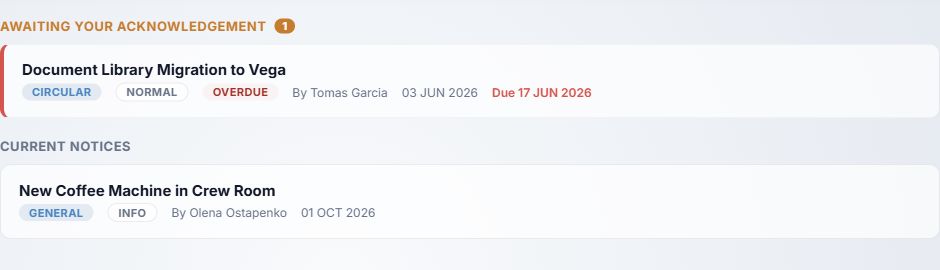
Figure 1. 1 — Awaiting your acknowledgement: pending notice count. 2 — Pending card: select it to open the full notice. 3 — Due date and overdue marker: check when the action was due. 4 — Current notices: notices still in force that are not in your pending list. The names in this example are fictional demo data.
An informational notice has no acknowledgement button. Managers may also see Archive and Manage tabs; ordinary readers normally see the current inbox only.
Read the details and attachments
- Read the entire notice body. Check its title, type, priority, and any Published, Expires, Due, or Rev label.
- If Related library document appears, use the named document in the library for the full controlled text. A related-document label does not itself acknowledge either item.
- If files are attached, select each attachment to open it in Vega's viewer. A pending attachment shows Open to continue until you open it; an opened one shows a check mark. Use Back to return from the attachment viewer to the notice. The icon at the viewer's top right offers Open with the device's own viewer. If inline viewing fails, Vega offers Download; open the downloaded file before returning.
- If a PDF or image attachment cannot be displayed, resolve the problem before acknowledging. The acknowledgement button stays disabled until each required attachment has been opened in the current notice session. Opening it in another session does not carry the check mark into this dialog.
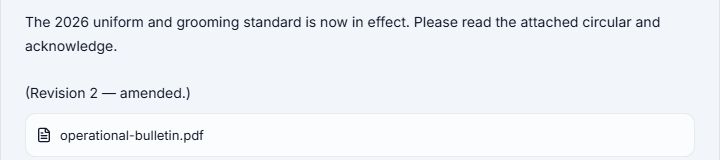
Figure 2. 1 — Notice body: read the instruction and any revision note. 2 — Attachment: select the file to open it. This excerpt shows where an attachment appears; a pending reader's view also shows Open to continue until the file opens successfully.
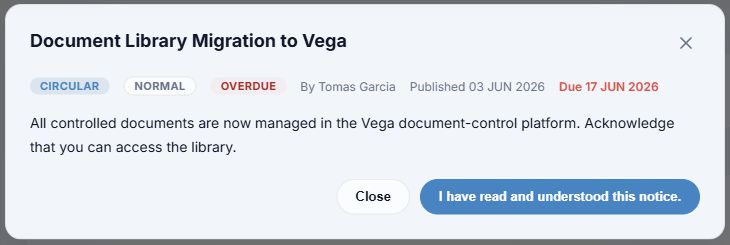
Figure 3. 1 — Title: the notice you opened. 2 — Status and dates: this example is overdue; due dates vary by recipient. 3 — Body: read it before confirming. 4 — Confirmation button: this company's notice uses custom wording. The built-in fallback is I have read and understood. The example has no attachment; when one is present, it appears between the body and buttons.
Acknowledge when required
After reading the notice and opening every attachment, select the confirmation button (Figure 3, 4). Wait for the success message, then check that the notice has left Awaiting your acknowledgement or shows Acknowledged with the recorded time. Close, the top-right ×, or clicking outside a regular notice closes it without signing. If the request fails, the action remains pending; reopen the notice and try again or contact support.
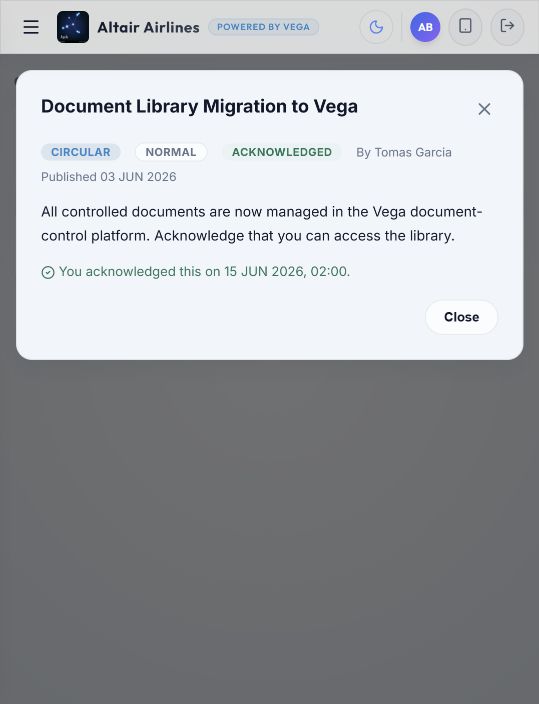
Figure 4. 1 — Title: the same notice. 2 — Acknowledged: no further action is currently due for this version. 3 — Recorded time: when Vega logged your acknowledgement. The author in this fictional example is not a real employee.
Some mandatory notices open immediately after sign-in and prevent access to the rest of Vega until they are acknowledged. If the notice cannot load, check your connection and select Try again. Closing a regular notice with Close does not record acknowledgement; the mandatory notice cannot be dismissed as a substitute for signing.
Related guides
- Sign in and navigate Vega
- Find, read, and acknowledge a document
- Create and publish a notice (for notice managers)
- Check notice read tracking (for notice managers)