Find, read, and acknowledge a document
For: Users with access to Document Library
Before you start: Sign in to your company's Vega portal.
Last checked: 7 October 2026, local fictional demo v1.126.2 and current reader code
You can open an accessible document for reference without signing it. A document becomes an assigned action only when its current revision requires your acknowledgement.
Find a document
- Select Document Library from the menu.
- Open a folder in the folder tree, or enter part of a document title or distribution-group name in Search all folders (Figure 1, 1). Search covers the accessible library, even when you are inside a folder.
- Select a result card or row. When a search result shows a folder path, select that path to open the containing folder.
- If you recently used the document, select History (2) instead. Its three tabs are explained in Find a document with History.
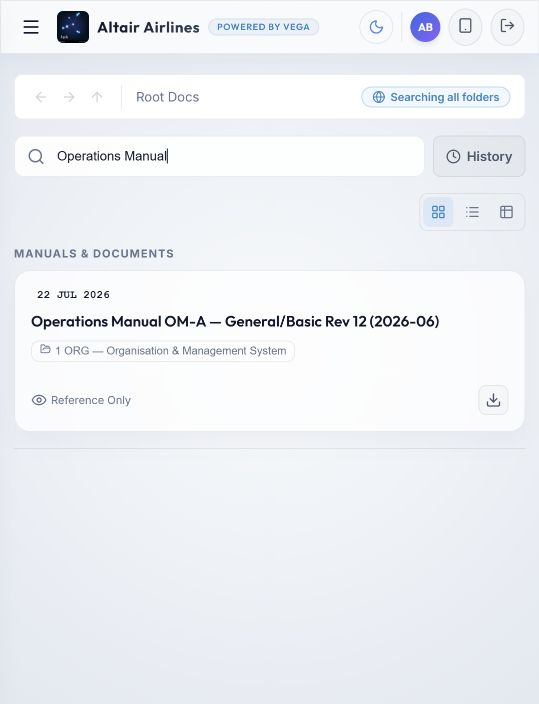
Figure 1. 1 — Search all folders: enter a title or distribution group; clear the field to restore the folder view. 2 — History: switches between recent-document lists and folders. 3 — Reference Only: this item has no acknowledgement action for the signed-in user. The card date is the current file's upload date, not proof that you read it.
On a phone, results initially use tiles; on a wider screen, they initially use details. The Tiles, List, and Details buttons change the layout only. They do not change the document or its status.
Identify a document that needs action
Assigned documents appear under Documents Requiring Action on My Dashboard. In the library they show Action Required and an Acknowledge shortcut (Figure 2, 3–4). A due date may appear on the dashboard or in the reader; No deadline does not make the acknowledgement optional.
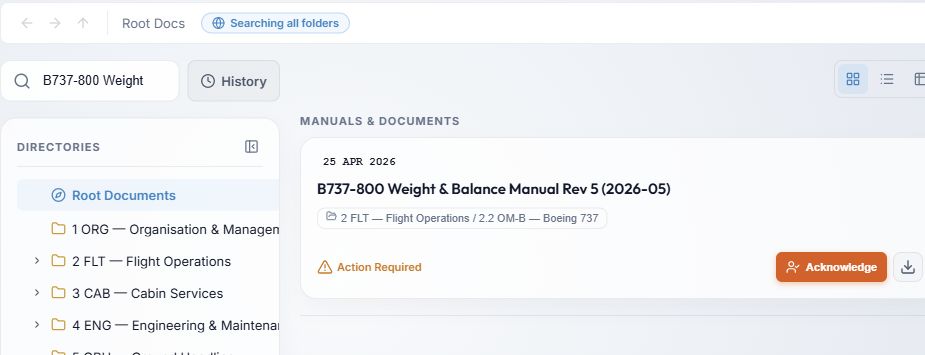
Figure 2. 1 — Search: narrows the accessible library. 2 — Title and revision: check that you selected the intended document. 3 — Action Required: your current revision needs acknowledgement. 4 — Acknowledge: opens the reader; it does not sign the document immediately. The adjacent icon downloads the file.
Read the current file
- Select the document card, dashboard action, or Acknowledge shortcut. Vega opens the document reader.
- Wait for the PDF preview to appear. Check the document title and revision shown in the reader against the file itself, then read it. Acknowledge Document stays unavailable while a PDF is still opening or has failed to open.
- Use Download File if you need a local copy. For supported files, the reader also offers Open in new tab and Print Document. Downloading or printing is not an acknowledgement.
- Some non-PDF files cannot be previewed in Vega. The reader tells you to download and open them in the appropriate application. If the file cannot be opened or the title/revision does not match, contact your document controller before signing.
Reader controls
- Zoom out and Zoom in change the PDF size on screen. Page … of … follows your current page as you scroll. A grey zoom button has reached its limit.
- Find in document opens a search field. Type text, then use Previous match and Next match; the counter shows which match is active. Close find returns to the ordinary reader. Enter moves to the next match; Shift+Enter goes back. A search with no result shows No matches.
- Open in new tab opens the available PDF or image in a browser tab. Print Document starts the browser's print flow for a previewable file. Both may be disabled while the file is loading and are not shown for Office files that need a download.
- Download File saves the current file. The x at the top right closes the reader. Download, print, and open are not signatures.
- Revision history, when shown to an authorised account, lists current and superseded uploads with their dates, uploader, file, and optional change note. It is different from the personal History button in the library. See Publish a new revision.
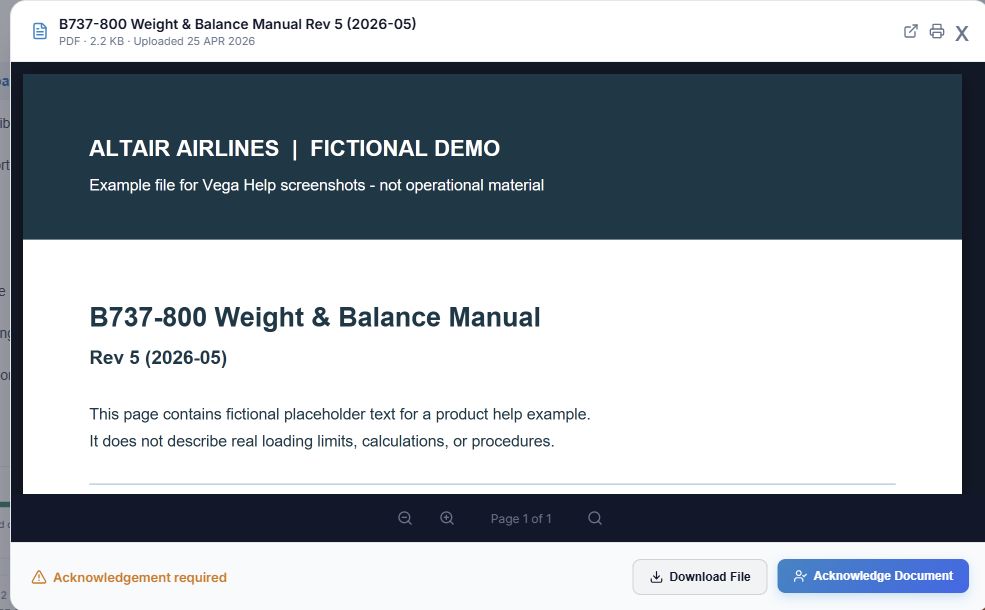
Figure 3. 1 — Reader title: compare it with the selected library card. 2 — PDF title and revision: this fictional file was prepared to match the card exactly. 3 — Viewer controls: zoom, page number and find in document. 4 — Download File: saves a copy but does not sign. 5 — Acknowledge Document: opens the signature dialog only after the PDF is ready. The reader can also offer Open in new tab and Print Document icons at the top right.
Record your acknowledgement
Only do this after reading the correct current revision.
- Select Acknowledge Document in the reader. This opens Mandatory Document Acknowledgement; the first button does not yet record a signature.
- Read the declaration. Acknowledgement Signature (Authenticated User) shows your account name and cannot be edited there. If it is wrong, close the dialog and contact your administrator.
- Select the consent checkbox for the official signature and then the final Acknowledge button. The button remains unavailable until the consent box is selected.
- Vega records the acknowledgement for this document revision. Check that the reader now says Document acknowledged, or that the item leaves Documents Requiring Action. If an error appears, do not assume your signature was recorded; reopen the item and check its status.
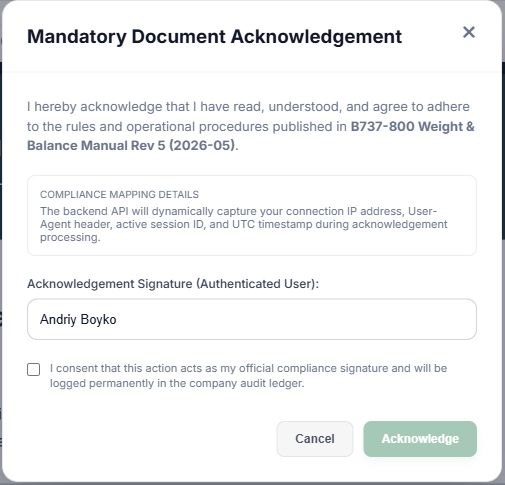
Figure 4. 1 — Declaration: check the document named here before signing. 2 — Authenticated user: Vega fills this read-only field from your account; the person shown is fictional. 3 — Consent: select it only after reading the document and declaration. 4 — Acknowledge: submits the signature; it is disabled until consent is selected. Cancel returns to the reader without signing.
A document marked Reference Only does not require your acknowledgement. A document may require signatures from other groups while remaining reference material for you. See Revisions and distribution status for the meaning of each personal status.