Create, rename, and delete library folders
For: Document controllers with edit access to the section
Before you start: Open Document Library and navigate to the intended parent folder.
Last checked: 7 October 2026, fictional local demo v1.126.2 and current folder code
Folders organise the library. A folder path is separate from a document's distribution groups. Creating or renaming a folder does not send a document email.
Create a subfolder
- Open the parent folder. Select New Folder in the top toolbar. At Root Docs, the new folder will be at the root.
- Check the Creating a subdirectory inside line before typing anything (Figure 1, 1). If the location is wrong, select Cancel, open the right parent, and start again.
- Enter a non-empty Folder Name (2), then select Create Folder (3). Vega refreshes the tree. Cancel or × closes the form without creating a folder.
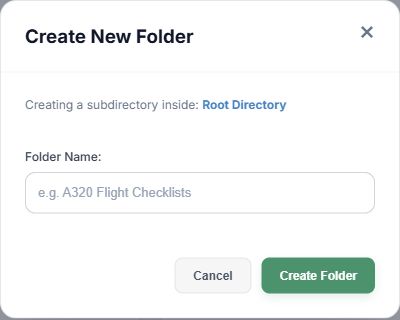
Figure 1. 1 — Parent: the folder that will contain the new one. 2 — Folder Name: required; the example text is only a placeholder. 3 — Create Folder: saves the folder. Cancel and × discard the form.
Rename a folder
- Find the folder in the right pane. Choose its Edit Folder icon. The icon appears only where you can manage that folder.
- Change Folder Name (Figure 2, 1) and select Save Folder (2). Cancel or X closes without saving.
- Check the new name in the tree and document paths. The current edit form renames the folder; it does not offer a parent-folder move control.
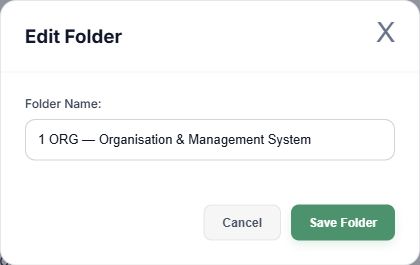
Figure 2. 1 — Folder Name: current value, required. 2 — Save Folder: applies the rename. Cancel and X leave it unchanged.
Delete an empty folder
- Choose the folder's Delete Folder icon.
- Read the warning (Figure 3, 1). Vega deletes only empty folders. Move or remove documents and subfolders first.
- Type DELETE exactly into the confirmation field (2). The final Delete Folder button (3) remains unavailable until it matches.
- Select Delete Folder and confirm that the folder disappears. Cancel or X stops the operation.
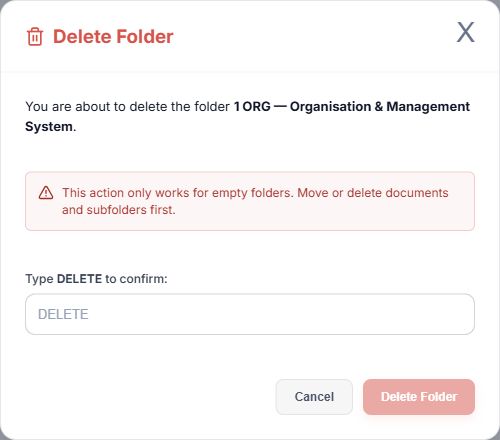
Figure 3. 1 — Empty-folder rule: deletion will fail if anything remains inside. 2 — Confirmation: exact word DELETE. 3 — Delete Folder: completes the removal; it is disabled before confirmation.
If New Folder, Edit Folder, or Delete Folder is missing, check that you are inside a section you may edit. Restricted editors can read other sections without managing them. See Navigate the library.