Manage drafts, revisions, and archive
For: Notice managers (NOTICE_MANAGE)
Before you start: Open Notices → Manage.
Last checked: 7 October 2026, fictional local demo v1.126.2 and current Notices code
The Manage table is the manager's control centre. Its All, Active, Draft, and Archived tabs filter by lifecycle state. The reader's separate Current and Archive tabs show only notices addressed to that reader; the reader's Archive tab is visible only to managers in the current interface.
Read the table and use its buttons
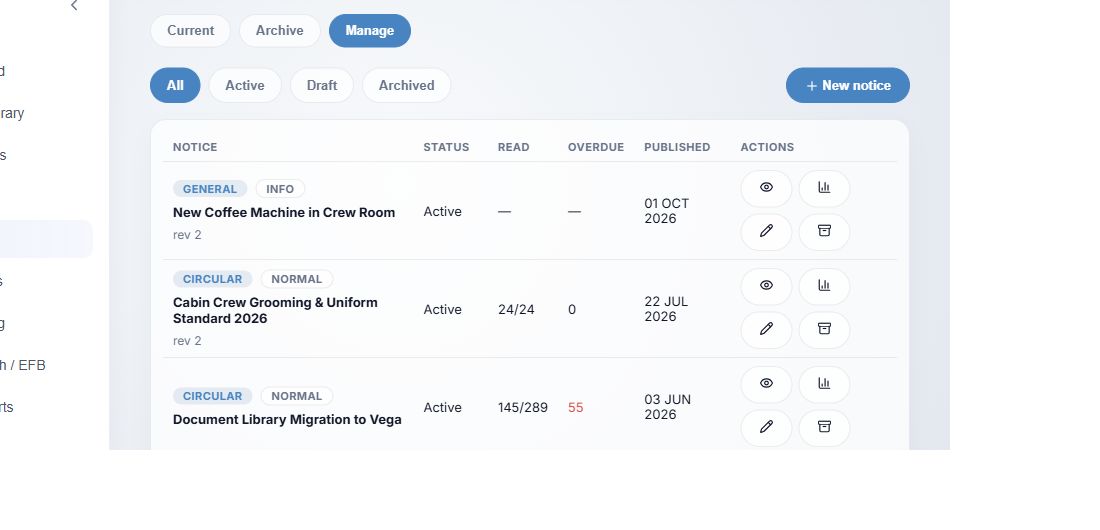
Figure 1. 1 — Manage: manager view. 2 — All / Active / Draft / Archived: status filters. 3 — New notice: open the composer. 4 — Notice cell: title, type, priority, and revision when above 1. 5 — Status: lifecycle state. 6 — Read: acknowledged/current audience when acknowledgement is required; an em dash means not applicable. 7 — Overdue: late acknowledgements. 8 — Published: date or em dash for a draft. 9 — Row actions: icons vary by status; hover for their names or use the labels described below.
- Select All, Active, Draft, or Archived (Figure 1, 2). Use Previous page, numbered pages, Next page, or Per page below the table when there are more results. Switching a filter returns to page 1.
- Use View (eye icon) to inspect the notice as a manager. This is a read-only preview; it does not acknowledge it for you.
- Use Read tracking (chart icon) for a published or archived notice. Drafts have no tracking button. See Check notice read tracking.
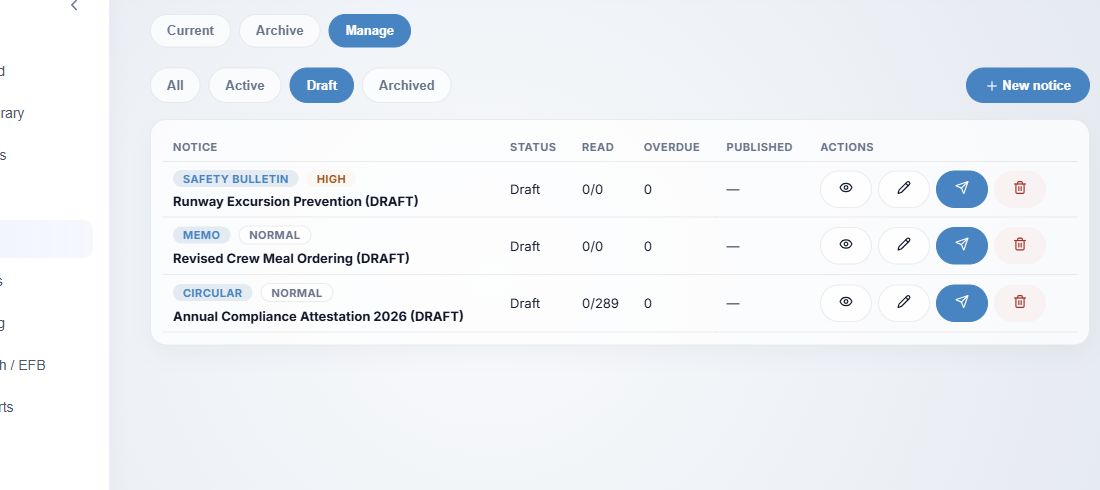
Figure 2. 1 — Draft filter: lists unpublished notices. 2 — View: preview. 3 — Edit draft: reopen the form. 4 — Publish: publish the row immediately. 5 — Delete draft: open a permanent-deletion confirmation. The titles are fictional demo examples.
Work with a draft
- Select Draft → Edit draft (Figure 2, 3) to change its title, body, audience, deadline, expiry, acknowledgement rule, or attachments. Choose Save draft to keep it unpublished, or Publish now to publish from the form.
- The row's Publish button (4) publishes the existing draft without a separate review dialog. Check View or Edit draft first. A draft whose audience currently matches nobody cannot be published. If publication succeeds, it moves to Active; if it fails, resolve the shown error before retrying.
- Delete draft (5) opens a confirmation. Delete permanently removes that unpublished draft; Cancel or × leaves it intact. Published notices cannot be deleted through this action.
Amend an active notice
- In Active, use Amend (pencil icon). The current notice loads into Amend notice (new revision). Review the prefilled type, priority, title, body, acknowledgement rule, deadline, expiry, audience, and attachments before saving.
- Material change — issue a new revision and require everyone to re-acknowledge is selected by default (Figure 3, 1). With it selected, add an optional Revision note (2) and choose Publish revision. Vega creates the next revision number, resets acknowledgement/reminder state for the new version, and recalculates deadlines. For a notice that requires acknowledgement, recipients must acknowledge the new version; an announcement is sent to the current audience. Earlier signature evidence remains tied to the earlier version.
- Clear Material change for a correction that should not create a new revision or require a new acknowledgement. The final button becomes Save changes (Figure 4, 2). It updates the current version in place and sends no new announcement. It does not update the current version's deadline; use a material revision if the deadline must change. Use this sparingly: existing acknowledgements still stand for the modified text. If the change affects a person's obligation, use a material revision.
- Use Cancel or the top-right Close to leave without saving. For an active notice, the × / Remove attachment controls stage changes until the final save. The composer does not offer a related-library-document picker; existing linked-document information is preserved when the form loads and saves it.
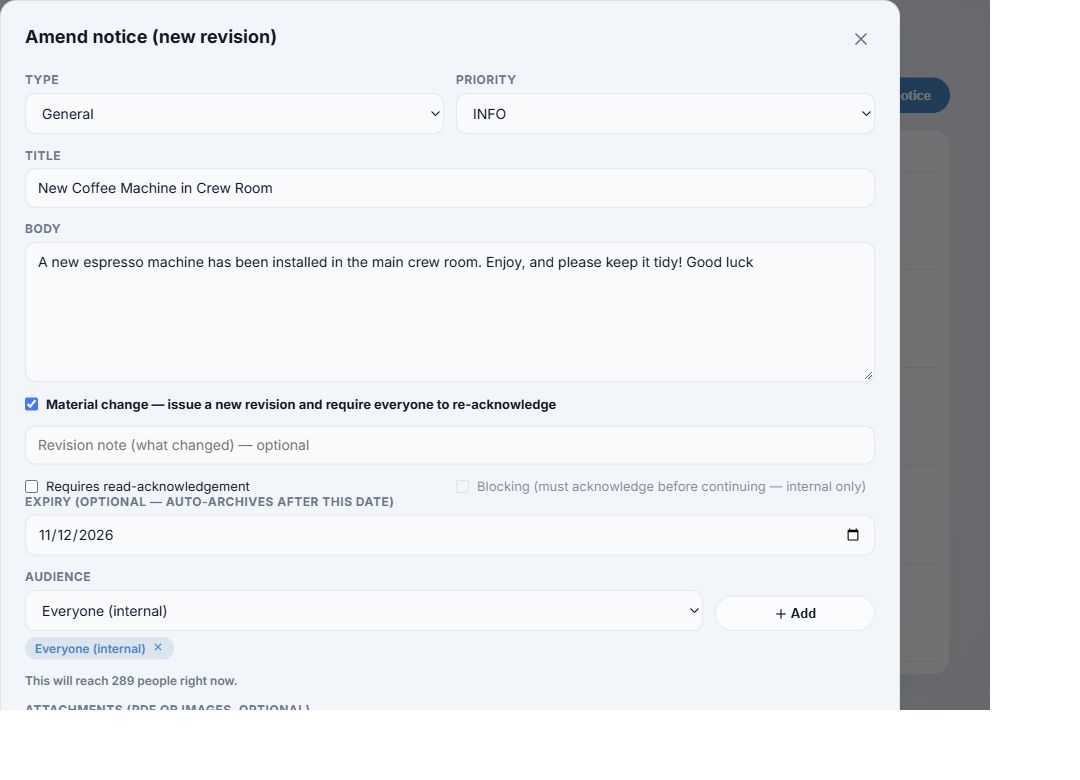
Figure 3. 1 — Material change: selected by default. 2 — Revision note: optional explanation of what changed. 3 — Requires read-acknowledgement: decide whether the new version needs confirmation. 4 — Expiry and audience: recheck before publishing. The Publish revision button is at the bottom of the form, below this crop. This fictional example is informational, so the pictured acknowledgement checkbox is off; a revision of an acknowledgement-required notice will ask recipients to sign again.
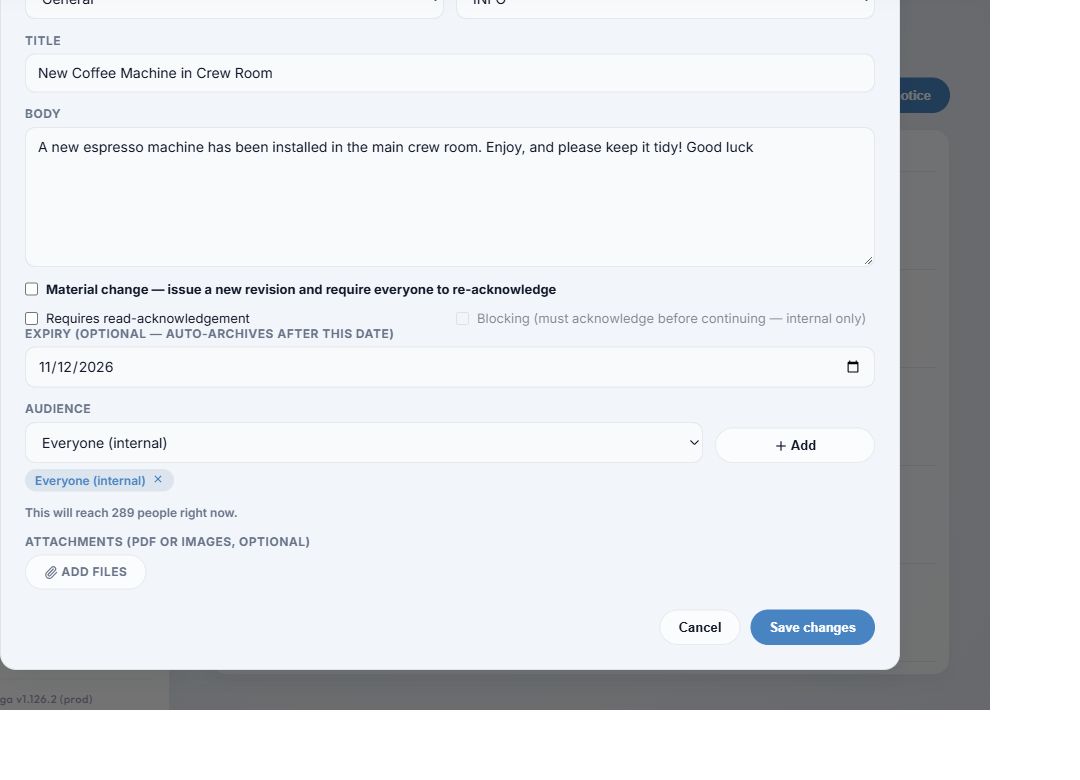
Figure 4. 1 — Material change cleared: keeps the current revision number. 2 — Save changes: updates without a new signature or announcement. 3 — Cancel: abandon the edit.
Archive or recall
- Select Archive / recall for an Active notice. Read the confirmation: it stops appearing in active inboxes, while acknowledgement evidence is preserved. Choose Archive to proceed or Cancel to keep it active. A scheduled expiry can also archive it later.
- Use Archived to find a stopped notice. You can still View and open Read tracking, but there is no Amend, Archive / recall, or restore button for an archived notice in the current manager interface.
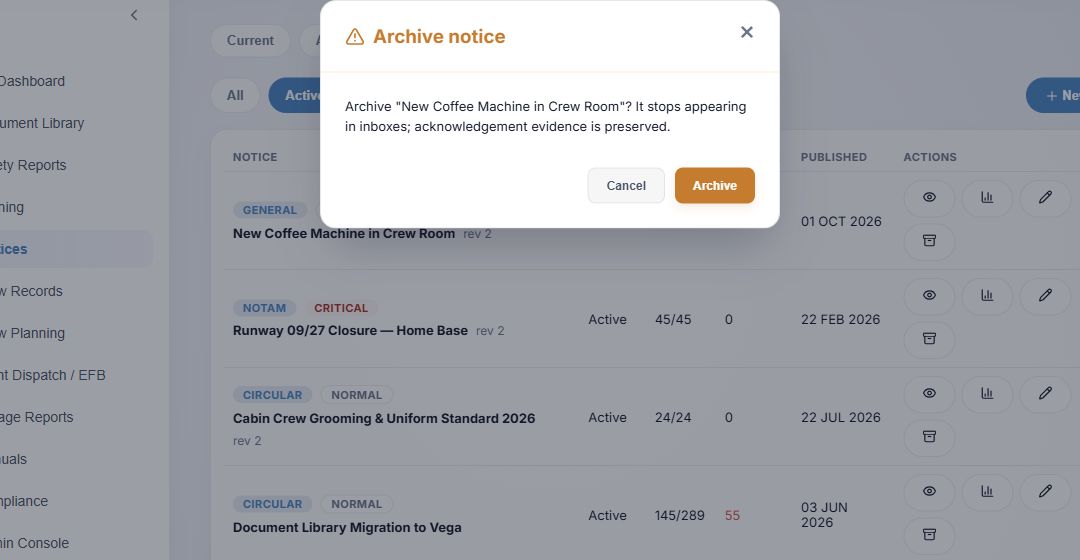
Figure 5. 1 — Archive notice: check the exact title. 2 — Consequence: the notice leaves active inboxes; existing acknowledgement records remain. 3 — Cancel: keep it active. 4 — Archive: confirm the recall.
For creation defaults and the immediate publication action, see Create and publish a notice.