Submit a safety report
For: Anyone with access to Safety Reports
Last checked: 7 October 2026, fictional local demo v1.126.2 and current source
Use Safety Reports to send an occurrence or hazard to your company's Safety Management System (SMS) team. Follow your company's urgent reporting procedure for events requiring immediate action. A saved draft is not a submitted report.
1. Open and complete the form
Select Safety Reports → New Report. If you have drafts, choose New Report above the draft cards to start a separate report.
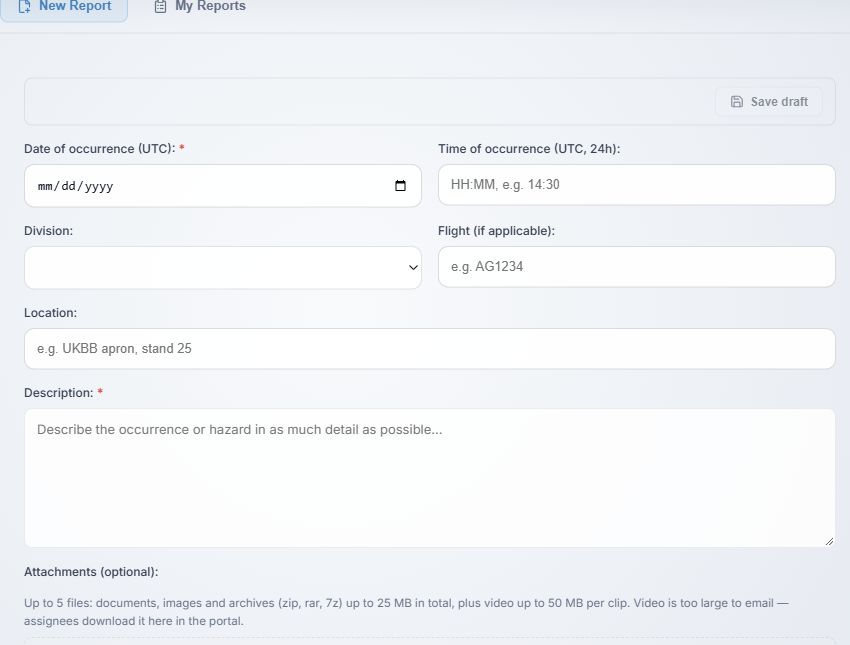
- New Report opens the form. My Reports shows reports linked to your account. The other tabs depend on your role or assignments.
- Save draft saves the current text without submitting it. It becomes available after you enter at least one field; draft handling is explained separately.
- Date of occurrence (UTC) is required. Use the actual occurrence date, not the date on which you submit the form.
- Time of occurrence (UTC, 24h) is optional. Enter
HH:MMsuch as14:30; a short entry such as930is normalised to09:30when you leave the field. Invalid times block submission. - Division is optional. Choose the department concerned. Your company can maintain this list in its settings; a retired division is no longer offered for new reports.
- Flight (if applicable) and Location are optional. Add enough context for the SMS team to identify the event without putting unnecessary personal information in the description.
- Description is required. Explain what happened or what hazard you observed, where and when, and any immediate action taken. Review it before sending, especially for an Anonymous report.
2. Attach evidence and select the report type
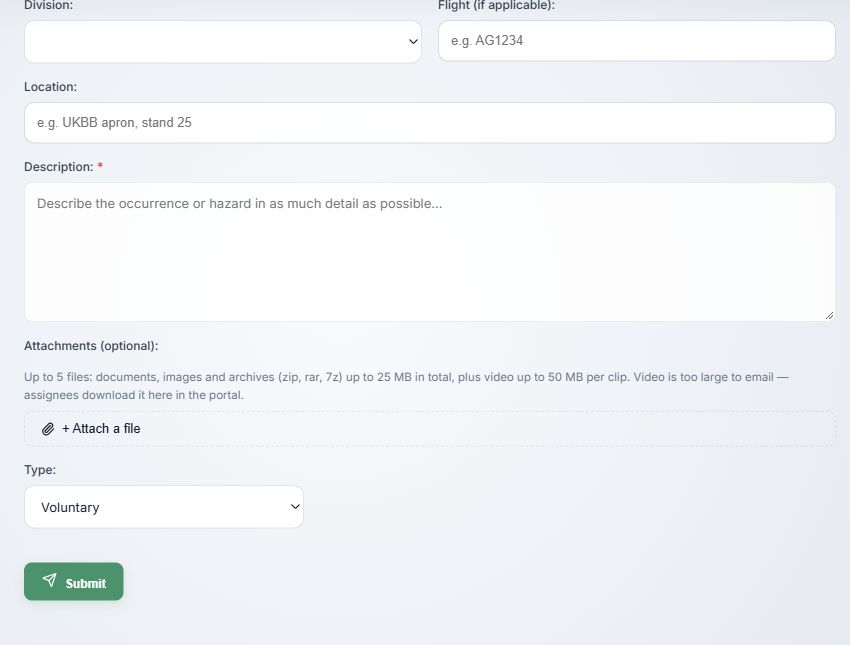
- + Attach a file opens the file picker. You can add documents, images, archives or video. The selected file chips show size; × on a chip removes that file before submission.
- The current form allows up to five files, with up to 25 MB combined non-video, 50 MB per video, and 100 MB overall. The company's server settings can set different size limits; if it rejects an upload, ask the SMS team or administrator for the applicable limit. Video is available through Vega rather than attached to the email.
- Type starts as Voluntary. Choose Confidential or Anonymous deliberately; the choice affects identity handling and draft storage.
- Submit checks the required date and description and any entered time. Watch the upload progress if you attached files. Cancel on the progress bar stops the upload; the report is not filed. Wait for the success banner before leaving.
Supported file types include PDF, Office documents, plain text/CSV, common images, ZIP/RAR/7Z and common video formats. If the picker or server rejects a file, use one of the formats named beside the attachment control and check the company limit.
3. Understand the three types
| Type | Identity in the filed report | What you can see afterwards |
|---|---|---|
| Voluntary (default) | The SMS team can see the submitter. Assignees receive a de-identified version. | Listed in My Reports. |
| Confidential | The SMS team can see the submitter while processing. On closure, Vega regenerates the stored PDF and removes the displayed submitter name and name-bearing filename; the private account link remains so you can still see your report. Assignees receive a de-identified version. | Listed in My Reports. |
| Anonymous | Vega does not store an account link or submitter name on the report. | Not listed in My Reports. |
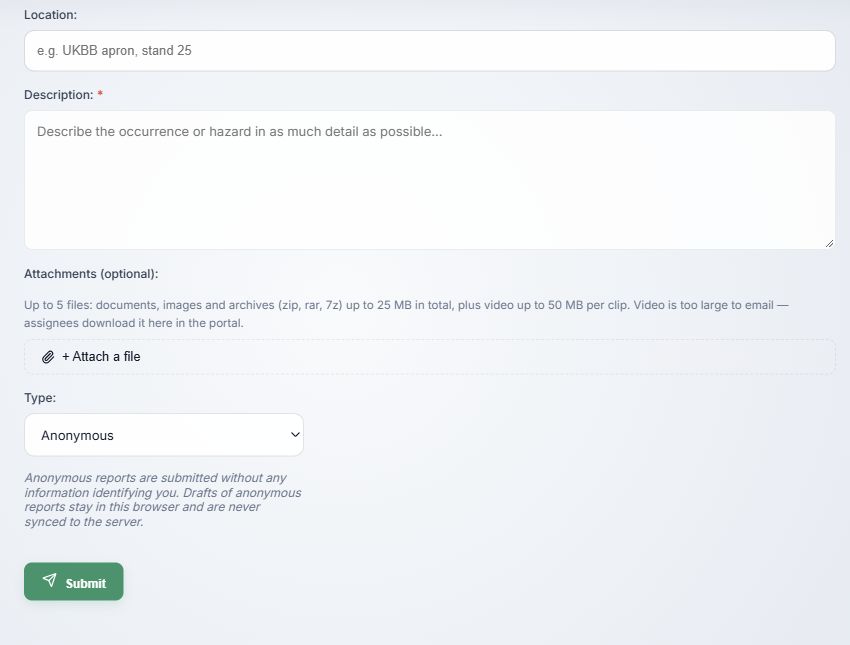
- Anonymous is selected in Type.
- The note explains that anonymous drafts remain in this browser and do not sync to the server. Changing from a previously synced type removes the old server draft copy when sync runs.
- Submit files the report without a recorded submitter identity. The success banner confirms the report type. Review your description, flight, location and files first: their contents may themselves identify a person.
Result and common problems
After a successful submission, Vega clears the form and its associated draft, stores the report and a PDF, and emails the configured SMS recipients. If no recipients are configured, the report is still stored but no notification email is sent. My Reports can track Voluntary and Confidential reports; it cannot retrieve Anonymous reports by author.
- Please fill in the mandatory fields: add occurrence date and description.
- Time must be a valid 24-hour time: use
00:00–23:59in UTC. - Invalid division: the division may have been retired since you opened the form; choose an active code or leave it blank.
- File or upload error: remove or reduce files and retry. A failed or cancelled upload does not mean the report was filed; wait for the success banner.