Find a document with History
For: Users with access to Document Library
Last checked: 7 October 2026, fictional local demo v1.126.2 and current History implementation
Use History when you need a document you acknowledged, opened, or downloaded earlier and no longer remember its folder. It also shows documents recently added to the library. History only lists documents you can currently access.
Open History
- Open Document Library.
- Select History beside the Search all folders field.

Figure 1. 1 — History button: Select it once to replace the folder contents with your History list. Acknowledged opens first by default.
You can tell that History is active in three ways:

Figure 2.
- History button: It is blue and outlined while History is active.
- Path: The breadcrumb reads Root Docs / History.
- Tabs: Acknowledged, Recently opened, and Recently added appear above the documents.
On a phone, the folder list is replaced by History. On a wider screen, the folder tree remains in the left column, but the main document area shows the selected History list. Your folders and documents have not been deleted.
Choose the right list
Each list puts its newest item first. The date on a document card has a different meaning in each list:
| Tab | Documents shown | Date shown |
|---|---|---|
| Acknowledged | Documents you have acknowledged | Your latest acknowledgement for that document |
| Recently opened | Documents you have opened or downloaded | Your latest opening or download |
| Recently added | Documents currently accessible to you, ordered by the current revision's arrival | When the current revision was added |
Acknowledged
This is the default tab when you open History. Use it to return to a document you acknowledged yesterday or last week.
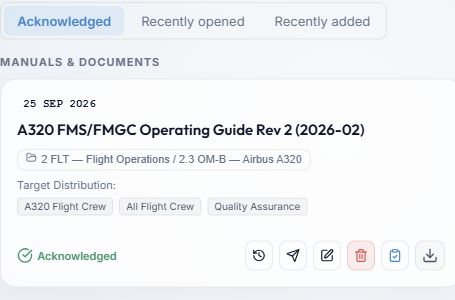
Figure 3.
- Acknowledged tab: Shows your personal acknowledgement history.
- Date: Shows when you last acknowledged this document, even if the document has a newer revision now.
- Folder: Shows where the current document lives. Select the folder name to leave History and open that folder.
If a card now says Action Required and offers Acknowledge, the current revision still needs your acknowledgement. This can happen after a new revision replaces the one you signed. Open and read the current revision before acknowledging it again.
Recently opened
This tab includes documents you opened or downloaded, including Reference Only documents that do not require acknowledgement. A document appears once, ordered by your most recent opening or download.
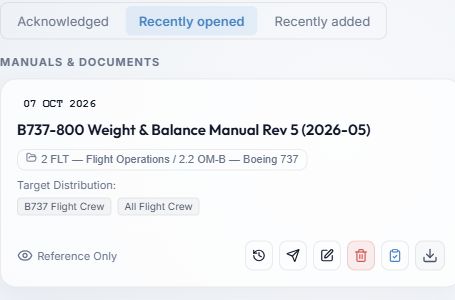
Figure 4. 1 — Recently opened tab: Select it to see your own reading and download history. The date on each card is the latest time you opened or downloaded that document.
Recently added
This tab helps you see which documents or revisions have arrived in the library. It is not limited to documents assigned to you for acknowledgement; it includes the documents your role can currently access.
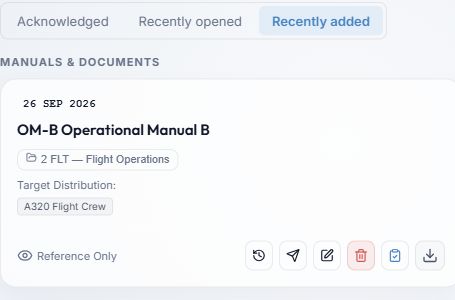
Figure 5. 1 — Recently added tab: Select it to see the newest current revisions first. The date tells you when that revision was added, not when you read it.
Open a document or its folder
- Open the document: Select its card or title. It opens in the same reader as it would from a folder. Check the title and revision before taking any acknowledgement action.
- Open its folder: Select the folder name beneath the document title (Figure 3, 3). History closes and the folder opens among its other documents.
- Narrow the list: Type part of a document title or distribution group into Search all folders. The selected History list is filtered to matching documents. Clear the search to restore the full list.
- Change the layout: Use the tiles, list, or details buttons above the results. These change how results are displayed; they do not alter the documents. The initial layout is tiles on a phone and details on a wider screen.
Return to folders
Select History again. The button is no longer highlighted and the folder view returns. If you entered History from a folder, the same folder reopens.
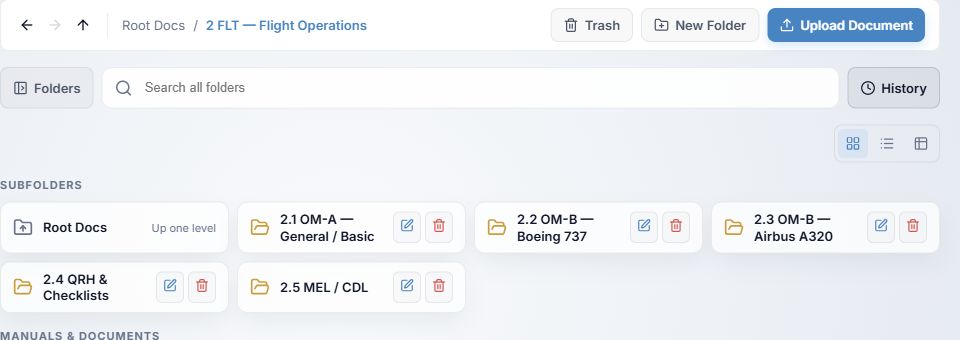
Figure 6. 1 — History button, inactive: The ordinary folder view is visible. Select the button to open History again.
You can also select Root Docs in the breadcrumb to open the root folder, use the back arrow or browser Back to return to the previous place, or select a folder in the left tree on a wider screen.
If something looks wrong
- The folders seem to have disappeared: Check whether the History button is blue and the path says Root Docs / History (Figure 2). Select History again.
- A list is empty: You may not have acknowledged or opened any documents yet. Recently added can also be empty if no accessible documents have been added.
- A document you remember is missing: It may have been removed or you may no longer have access. History only shows documents you can open now.
- A document you acknowledged says Action Required: A newer revision may need a fresh acknowledgement. Open and review it.
Acknowledged and Recently opened are personal lists. Other users do not see your entries in those tabs. Recently added shows the library documents available to each user's role.