Assign, process, close and reopen a safety report
For: SMS staff with Safety Reports inbox access
Last checked: 7 October 2026, fictional local demo v1.126.2 and current source
Open a case from Report Inbox. The detail shows the report, attachments and Processing history. The actions below are available while the report is open; a closed report instead offers Reopen Report.
Send work to assignees
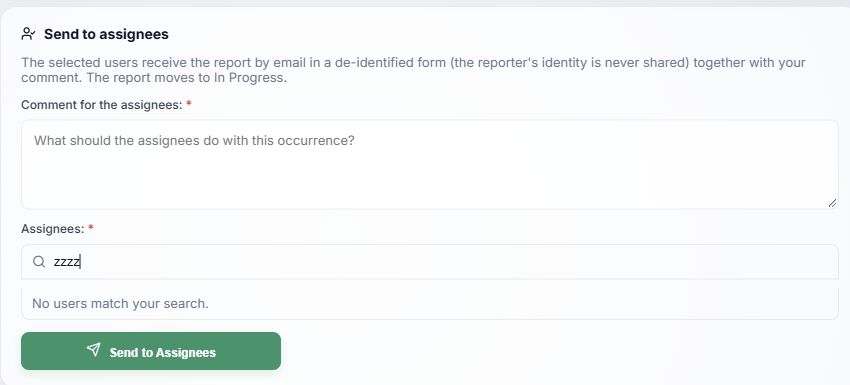
- Comment for the assignees is required. State the question, action or investigation expected from them.
- Assignees is required. The picker first suggests people you recently assigned. Type at least two characters of a name or email to search; the first ten matches are shown, so keep typing to narrow a large result. Check one or more users; remove a selected chip with ×.
- Send to Assignees emails each selected user a de-identified task, moves the report to In Progress and records the assignment in Processing history. The action is effective only after the send succeeds.
Include attachments appears if the reporter added files and is off by default. Check it only when those files are needed for the task. If you leave it off, Send to Assignees asks for confirmation before sending without them. Video stays in Vega for download. The email and task view omit the reporter's identity.
You can send another assignment while the report remains open. Each recipient has a separate response state. Open the case later to see Awaiting response, Answered, sent time and any response attachments. Select an attachment chip to download it.
Record a response on someone's behalf
If a person answered outside Vega, or a task needs an explicit “not required” response, select Respond on behalf beside that pending recipient. Enter the response text, optionally add evidence files, then send. The history records that SMS wrote it on that person's behalf. The assignee can add their own follow-up while the report remains open. Use this only for an actual response or a documented resolution of the task.
The not responding to reminders label appears after three reminders on a pending recipient in the current interface. Company settings control whether reminders run, their interval and maximum count. If needed, contact the assignee directly or record a justified response on their behalf.
Close and reopen
- Review every task and response in Processing history. Close Report is disabled while any assigned recipient is still waiting for a response; the page lists the waiting names.
- Enter Corrective actions / what was done. This text is required even if no assignments were sent. Describe the action and result clearly enough for later review.
- Select Close Report. Vega records the actor and time, regenerates the PDF with corrective actions, and marks the case Closed. For a Confidential report, closure removes the submitter's displayed name and name-bearing PDF filename; its private account link remains so the author can still see the report. A linked submitter receives a closure email; Anonymous reports have no linked author to notify.
- If further action is needed, open the closed case and select Reopen Report. The case returns to In Progress and the reopening appears in Processing history. You can assign more work and close it again after the responses are complete.
When an action is unavailable
- Send to Assignees needs a comment and at least one selected user; an unmatched search does not select a user.
- Close Report needs corrective-action text and no pending assignee responses. The server applies the same guard as the button.
- A closed report no longer accepts assignment responses. Reopen it before starting new work.
- A failed assignment or closure displays an error; check it before assuming the case changed state.