Save drafts and follow your reports
For: Reporters with access to Safety Reports
Last checked: 7 October 2026, fictional local demo v1.126.2 and current source
Use drafts when you need to continue writing later. Use My Reports after submission to follow reports linked to your account. Submit a safety report explains every form field and the three report types.
Draft controls
Vega saves changes to a draft in this browser after a short pause. For Voluntary and Confidential drafts it also tries to sync changes to the server periodically, so they can be continued on another device. Anonymous drafts remain on this device. You can keep up to 10 drafts. File attachments are never saved in a draft.
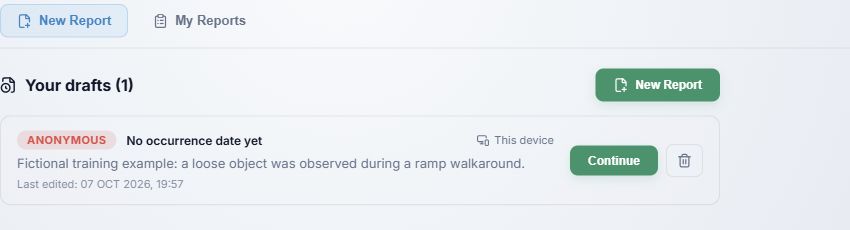
- Your drafts shows the number of saved drafts; New Report starts a separate empty form.
- The type, occurrence date, description excerpt and Last edited timestamp help you identify the correct draft.
- This device means the draft is browser-only; Synced means a server copy is available across your devices. Anonymous drafts always say This device.
- Continue restores the fields. Reattach any files before submitting; the restore banner reminds you that draft attachments were not saved.
- The trash button deletes the draft. A synced draft is also removed from the server. Deletion has no undo in the draft list.
While editing, Drafts (number) saves the current fields locally and returns to the cards. Save draft saves immediately and attempts server sync for non-anonymous types. The status text distinguishes Saving…, Saved locally, Saved to server, Draft saved in this browser only (anonymous) and Sync problem — draft kept locally. If you see a sync problem, do not assume the draft will be available on another device.
When you successfully submit a report, Vega removes its draft and clears the form. Selecting New Report starts a new draft; it does not submit or delete the other cards.
My Reports
Select My Reports for your own Voluntary and Confidential submissions. The list shows Submitted time, Type, Occurrence date, Division and Status. Search matches type, date, division and status. Use the page controls and Per page selector below a long list.
Select a row or its chevron to expand it; select it again to collapse it. The detail contains occurrence time in UTC, division, flight, location, description and any attachments you submitted. Select an attachment chip to download it. Once the SMS team closes the case, the detail also shows Corrective actions / what was done and the closure time. An older migrated report can show that its text is not stored; ask the SMS team about that record.
The status sequence is:
| Status | Meaning |
|---|---|
| Submitted | Stored; no follow-up assignment has moved it to In Progress. |
| In Progress | The SMS team sent at least one follow-up assignment, or reopened a closed report. |
| Closed | Corrective actions were recorded and all assigned responses were accounted for. |
Anonymous submissions cannot appear in My Reports because they have no account link. If your non-anonymous report is missing, check the active account and search text; a success banner is required to confirm filing. The reporter cannot edit a submitted report from this list.