Edit a document's details and distribution
For: Document controllers with edit access to the document's section
Before you start: Find the published document in Document Library.
Last checked: 7 October 2026, fictional local demo v1.126.2 and current edit code
Use Edit Document for its title, location, audience, or acknowledgement setting. This form does not upload a new file or publish a new revision. Use Publish a new revision when the file itself has changed.
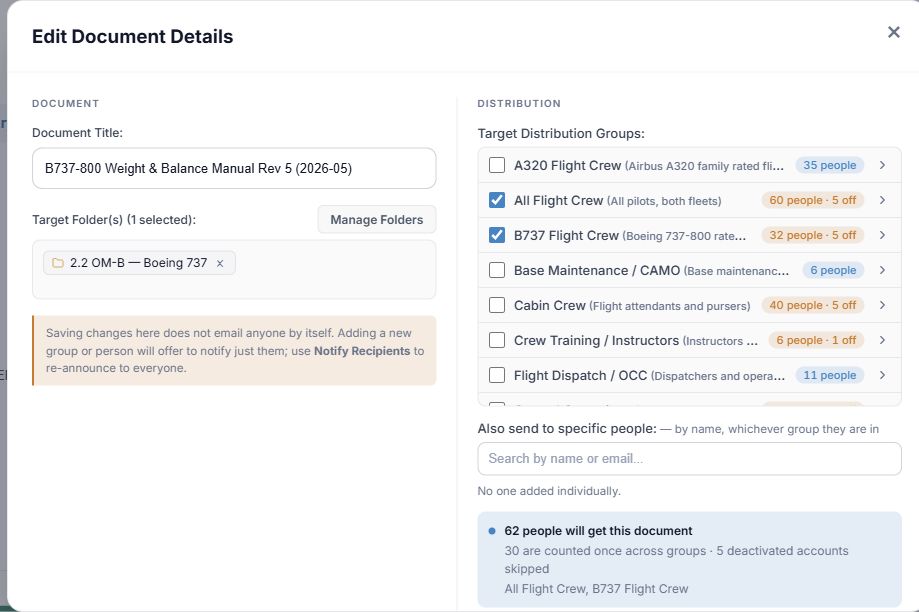
Figure 1. 1 — Document Title: current card title; required. 2 — Manage Folders and folder chip: change the filing location or remove the current selection. 3 — Save notice: saving here sends no email automatically. 4 — Target Distribution Groups: tick the groups addressed by this document. 5 — Specific people and audience summary: include individuals and check the deduplicated count. Requires Mandatory Acknowledgement and Save Changes are further down the form.
- Locate the document and select its Edit Document icon. Check that Edit Document Details shows the expected title.
- Edit Document Title if needed. A title cannot be blank. Changing this text does not alter the title printed inside the uploaded file; keep the two consistent.
- Select Manage Folders to choose a different destination, or × on the folder chip to file it in Root. In the picker, Search Folders, Expand All, Collapse All, folder checkboxes, OK, and Cancel work as described in Upload and distribute. The current product uses one folder per document.
- Add or remove Target Distribution Groups. Use each group's chevron to inspect members without selecting it. Add individual people through the member list or Also send to specific people; use × beside a selected person to remove them. The audience summary counts overlaps once and excludes deactivated accounts.
- Check Requires Mandatory Acknowledgement. This changes whether the distributed users must sign. The form does not expose deadline editing; a publication or revision has its own deadline controls. Changing the setting here does not create a new file revision.
- Select Save Changes. The library refreshes. Cancel or × leaves the details unchanged. Saving details alone sends no email.
When you add recipients
If you added a group, person, or folder access, Vega may open Notify New Recipients? after the save. This is a separate decision. It lists the newly added audience; it does not re-mail everyone already addressed.
- Check the new groups, people, and any newly filed folder listed in the prompt. A new folder can bring external partners who have access to that folder into the audience.
- Add a Notification Message (Optional) if useful.
- Select Send Notification to mail only the newly added recipients, or Skip / × to close without emailing. Saving the document has already happened even if you skip.
To re-announce the current document to its full distribution later, use Notify Recipients. That is a separate control with a preview and an interval limit. To change the file, use Publish a new revision.
If a person unexpectedly sees Reference Only or Action Required, verify their group membership, the individual address list, and the acknowledgement setting. See Revisions and distribution status.