Review external organization acknowledgements
Who can use this: Users with Company Compliance view permission. External organizations and their access are managed separately by authorized administrators under External Access. Last verified: Vega local demo v1.126.2, 8 October 2026.
- Open Compliance and choose External Organizations. The first organization in the alphabetic list is selected initially. Its cards show organization type, active member count, required documents, pending acknowledgements, and a rate.
- Select an organization card to view its members. External obligations come from published, acknowledgement-required documents in library sections granted to that organization, while access is active, unexpired, and Can sign document acknowledgements is enabled.
- Check the organization's state. Suspended means members are locked out and carry no active obligations. Ack disabled means acknowledgements are not enabled; a displayed 100% with zero documents means there is nothing to sign. If access has expired, obligations also cease; inspect External Access when a card unexpectedly shows no required documents.
- Choose All members, Fully compliant, or Not compliant. The status filter narrows both on-screen members and the CSV/PDF member list. Search members narrows the screen only, using name or email.
- Use CSV or PDF for a report about the selected organization. Exports contain personal data and are recorded in the audit log. The PDF summary describes the full organization even when its member list is filtered.
- Select a member row to see their required versions, deadlines, signatures, and any available manual reminder button. See Review one person's obligations.
For longer member lists, use page numbers, Previous/Next, and Per page (10, 20, 50, or 100; 20 by default). The chosen page size is remembered for this list and account in the current browser. Changing organization, status filter, or search returns to page 1. No pagination bar appears when the list fits on one page.
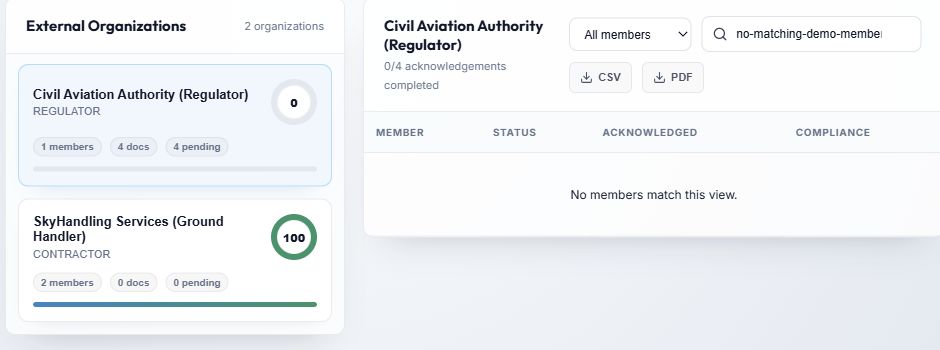
- The organization cards select the scope and show type, member count and pending acknowledgements.
- All members / Fully compliant / Not compliant sets the status subset used by both exports.
- Search members narrows the visible table; the example search matches nobody to keep the screenshot anonymous.
- CSV and PDF export the selected organization, not the company-wide internal report.
External organizations are excluded from the internal group cards and their rates are not added to the Company percentage at the top. An organization with no obligations can display 100%; read the document and pending counts before interpreting the rate. If the tab says No external organizations yet, an administrator must add an organization in External Access before there is data to review.