Publish a new document revision
For: Document controllers with edit access to the document's section
Before you start: Prepare the new file and check its title and revision inside the file.
Last checked: 7 October 2026, fictional local demo v1.126.2 and current revision code
Use Publish New Revision when the file itself changes. It publishes a new current file and leaves the previous upload in Revision History as superseded. A signature on the earlier revision does not sign the new one.
Replace the current file
- Find the document in Document Library and select Publish New Revision. Check the current document title and upload date in the form (Figure 1, 1).
- Select Choose the updated file (2). The file is required; Publish Revision remains disabled before you choose it. PDF, Word, Excel, PowerPoint, and common image formats are accepted.
- Check Document Title (3). Selecting a file proposes a title from its filename. Edit it to match the new file's actual title and revision. Changing it renames the document everywhere, including the revision notice. It cannot be blank.
- Add What Changed (Optional) (4) to help controllers understand the revision. This text appears in Revision History; it is separate from the email message.
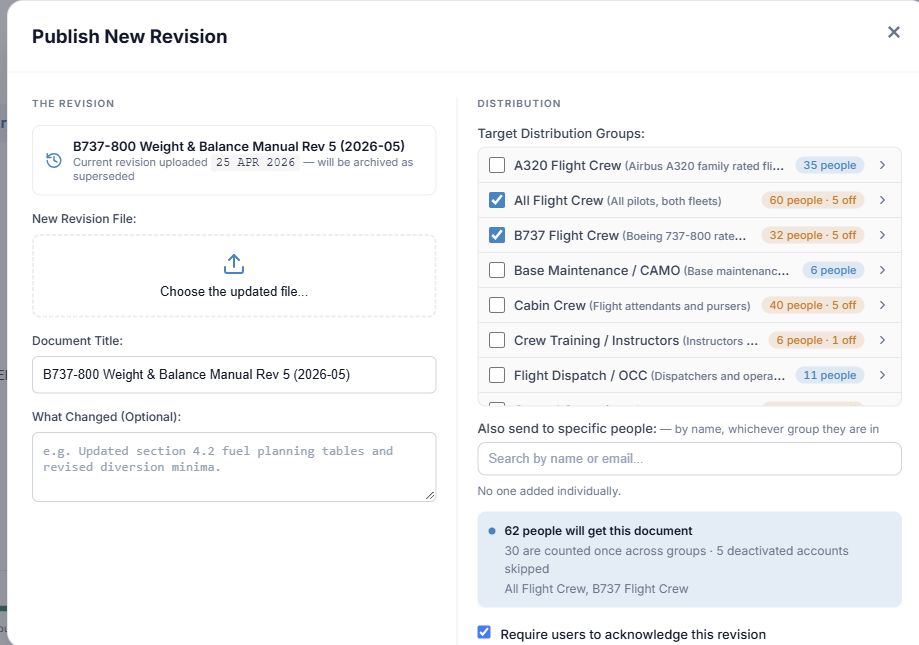
Figure 1. 1 — Current revision: the file this upload supersedes. 2 — New Revision File: required. 3 — Document Title: starts from the new filename and can rename the card. 4 — What Changed: optional revision note. 5 — Distribution: existing groups start selected; verify them before publishing. 6 — Specific people and audience count: the existing individual recipients load into the form; check the final count.
Recheck distribution, signature, and email
- Inspect Target Distribution Groups and Also send to specific people. The form starts from the document's existing audience. Tick or clear groups, inspect group members with the chevrons, and add or remove individuals as needed. The audience you submit replaces the previous distribution. Do not publish before the existing people and groups have finished loading.
- Decide whether to tick Require users to acknowledge this revision. It starts from the document's current acknowledgement setting. When on, distributed users must acknowledge this new revision, even if they acknowledged the old one. Turning it on also turns the email checkbox on; you can adjust email separately.
- If acknowledgement is required, select Acknowledgement Deadline Type: No Deadline, Relative Days (from publication), or Fixed Calendar Date. The form starts from the previous document's deadline type where available; relative days starts from the existing limit or 7 days. If using Fixed Calendar Date, explicitly choose a date in this form and check its preview.
- Decide whether to tick Notify distributed users by email (Figure 2, 3). For an existing mandatory document, it starts on; for a reference document, it starts off. This choice is independent of whether signatures are required. The Distribution Message (Optional) is pre-filled from the last distribution note when there is one; Vega adds its standard new-revision notice.
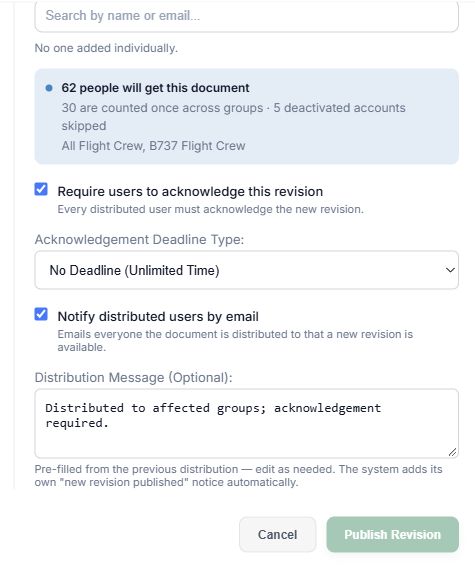
Figure 2. 1 — Audience summary: active recipients after overlap is removed. 2 — Acknowledgement and deadline: creates a fresh signature task for this revision. 3 — Notify distributed users by email: separate announcement choice. 4 — Distribution Message: optional note, pre-filled when possible. 5 — Publish Revision: starts the upload. Cancel closes without publishing.
- Select Publish Revision once. Watch the progress bar while the file transfers; the later publishing and notification phase can take longer. Cancel upload is available only during transfer. Wait for the success message and reopen the document to confirm the new file, title, and revision. Do not reuse an old file just to notify people; use Notify Recipients.
Inspect Revision History
For accounts that can view uploader information, the reader has a Revision history icon near Open in new tab and Print Document. Select it to see uploads newest first, with uploader, upload and publication times, filename, size, status (Current, Superseded, or Draft), and any What Changed note. × closes the history and returns to the reader. This list is an audit trail; it does not change the current revision.
If the icon is absent, your account may not have revision-history permission. If a user says a previous acknowledgement disappeared, check the current revision and personal status before assuming the signature was lost.