Understand revisions and distribution status
For: Document Library readers and document controllers
Before you start: Open an accessible document in Document Library.
Last checked: 7 October 2026, local fictional demo v1.126.2 and current library code
A document can have several published revisions. The library card and reader show the current file. Your acknowledgement is recorded for a particular revision, so a newer one can require you to read and sign again.
Check the current revision and your status
- Open Document Library and find the document by title or folder. A card title may include a revision label such as Rev 5 (Figure 1, 1). Check that label against the file when you open it.
- Read the card's status (3) before selecting its action (4). This is your status for the current revision, not a company-wide total.
- If it says Action Required, select Acknowledge to open the reader. Read the current file, then complete the separate signature dialog as described in Find, read, and acknowledge a document.
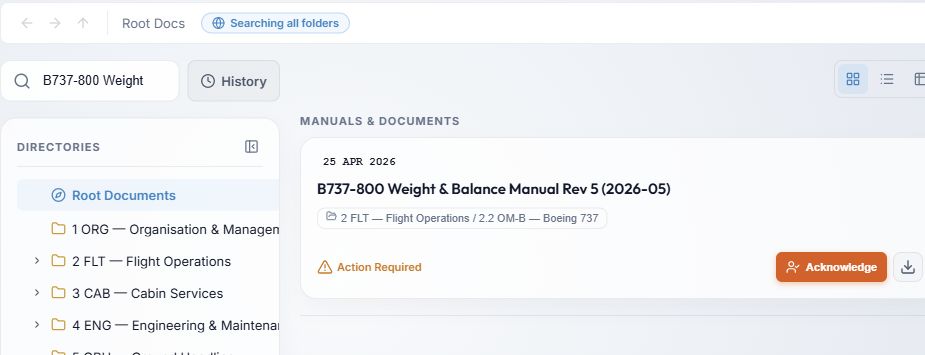
Figure 1. 1 — Search: find the document across accessible folders. 2 — Title and revision: identify the current published file. 3 — Action Required: the signed-in reader owes an acknowledgement. 4 — Acknowledge: opens the file before signing; it is not the final signature.
| Card status | What it means for you | What to do |
|---|---|---|
| Action Required | The current revision requires your acknowledgement and you have not signed it. | Open, read and acknowledge the current file. |
| Acknowledged | Your acknowledgement for the current revision is recorded. | Open it whenever you need to read it again. |
| Reference Only | This revision has no acknowledgement action for your account. It may be purely informational, or it may require signatures from other distribution groups. | Read it when needed; no signature button is expected for you. |
The dashboard may show a Due date for a required action. No deadline means no due date is set for that assignment; it does not change Action Required into Reference Only.
Understand distribution groups
Document controllers can assign a document to Target Distribution groups. Group membership helps determine who receives an acknowledgement obligation when the document requires one. A user outside those groups may still have access to read the document but see Reference Only.
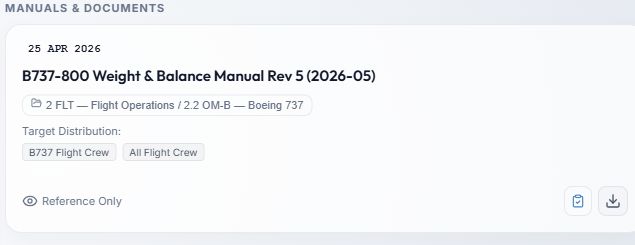
Figure 2. This is a document controller's view of a fictional file. 1 — Title: the current document. 2 — Target Distribution: groups selected for this document. This row may be hidden from ordinary readers. 3 — Reference Only: the signed-in controller is not personally required to acknowledge this revision, even though the document can require signatures from members of its target groups.
Target Distribution is separate from the folder path. A folder tells you where to find the document; its distribution groups help determine who is assigned to sign it. Seeing a group name on a card does not prove that your own acknowledgement is complete; use the personal status instead.
What changes when a new revision is published
- A document controller publishes a new file as the document's current revision. The old file remains part of revision history for authorised management and audit use.
- Vega evaluates acknowledgement for the new revision. If it is required for you, its card changes to Action Required and it can reappear under Documents Requiring Action, even if you signed an earlier revision.
- Open the new file. Check its title and revision, read the changes, and acknowledge that revision separately. An earlier signature does not sign the new file.
Your History → Acknowledged list can still show the date you last acknowledged the document while its current card says Action Required. That date describes your earlier acknowledgement; the card tells you what the current revision needs. History → Recently added orders accessible documents by when their current revision arrived. See Find a document with History for the three History tabs and their dates.
If the status or file seems wrong
- The file title or revision does not match the card: do not acknowledge it. Tell your document controller which card you opened and what the file actually shows.
- You expected an action but see Reference Only: check whether this is the right document and account. Your group membership or the document's acknowledgement setting may differ from what you expected; ask your document controller to verify the assignment.
- You signed before but now see Action Required: check whether a newer revision has been published. Read and acknowledge the current revision.
- A document is missing: search all folders and check your access. If it is still absent, ask your administrator or document controller whether your permissions or distribution changed.