Notice settings and access
For: Company administrators (SETTINGS_MANAGE) and notice managers (NOTICE_MANAGE)
Before you start: An administrator opens Admin Console → Settings → Notices. A notice manager opens Notices → Manage.
Last checked: 7 October 2026, fictional local demo v1.126.2 and current settings registry
Notice managers control each notice's audience, acknowledgement, deadline, expiry, and priority in the composer. Company administrators control four shared Notices settings in Admin Console → Settings → Notices. Only settings for enabled company modules appear in the settings list.
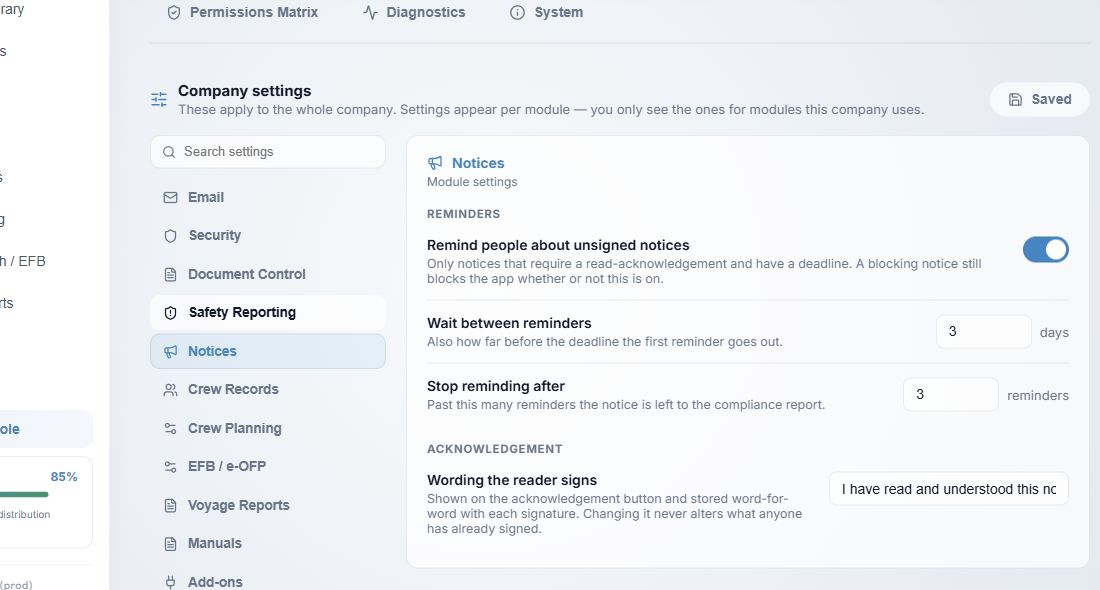
Figure 1. 1 — Notices section: select it in the Settings navigation. 2 — Remind people about unsigned notices: company-wide scheduled reminders. 3 — Wait between reminders: days between attempts and lead time before the deadline. 4 — Stop reminding after: maximum scheduled reminders. 5 — Wording the reader signs: acknowledgement button and stored signature text. 6 — Save/Saved: save changes when the button becomes active. Values shown here are from the fictional demo.
Reminder settings
- Remind people about unsigned notices (Figure 1, 2) is on by default. It applies only to active notices that require read-acknowledgement and have a deadline. Turning it off stops scheduled reminder emails; it does not remove a blocking notice or stop its access gate. The manual Remind unread action in read tracking is a separate manager action.
- Wait between reminders (3) defaults to 3 days and allows 1–30 days. The same interval determines how far before a deadline the first scheduled reminder may be sent. Later attempts wait at least this long after the previous one. An overdue notice can continue to be reminded until the maximum is reached.
- Stop reminding after (4) defaults to 3 reminders and allows 1–10. After the limit, the unsigned obligation remains visible in the inbox and compliance report; automatic email attempts stop.
- The scheduled pass handles eligible people with personal deadlines calculated from their first eligibility. With No deadline, no scheduled Notices reminder is sent. If reminders or email delivery fail, use Read tracking → Not delivered and your company's follow-up process.
Signature wording and saving
- Wording the reader signs (5) defaults to I have read and understood this notice. The company can replace it with its approved wording and language. It appears on the reader's acknowledgement button and is stored word for word with each signature. Changing it does not rewrite earlier signatures. Review the wording with the responsible company owner before saving.
- A user with
SETTINGS_MANAGEcan change a control, then select Save (6). A dot marks a changed row before saving. A customised row offers Reset to default; selecting it stages the default value, so use Save to apply it. The disabled Saved state means there are no pending edits. Reopen the section to verify the stored value.
Who can see and manage notices
- A user with the enabled Notices module can see their addressed active notices in Notices → Current, including pending acknowledgements. The number beside the sidebar item reflects action-required notices. An email link can open the addressed notice directly.
- Current, Archive, and Manage tabs appear for users with
NOTICE_MANAGE; ordinary recipients see their current inbox.NOTICE_MANAGEcovers composing, publishing, amending, archiving, read tracking, reminders, and CSV export. The backend enforces the permission and company boundary for manager routes. A manager's View opens a read-only preview and never signs for another person. - Notice visibility follows the current audience rules for active notices. Everyone (internal) excludes external organisation users; External org requires active external access and permission to acknowledge. Blocking notices only gate internal users. If a notice is missing, check the module licence, the person's active status, rule membership, notice state/expiry, and permissions.
For the full composer and audience choices, see Create and publish a notice and Set notice audience, deadlines, and attachments. For the manager's manual reminder and export, see Check notice read tracking.