View your published crew roster
Who can use this: Crew members with View published crew rosters access. Last verified: Vega local demo v1.126.2, 8 October 2026.
The Published roster is the released snapshot for one Monday–Sunday UTC week. A planner's unsent edits are not shown here. The illustrated HELP9001 sector, TSTA/TSTB airports, and DEMO-T03 aircraft are fictional training data.
Find the right week and revision
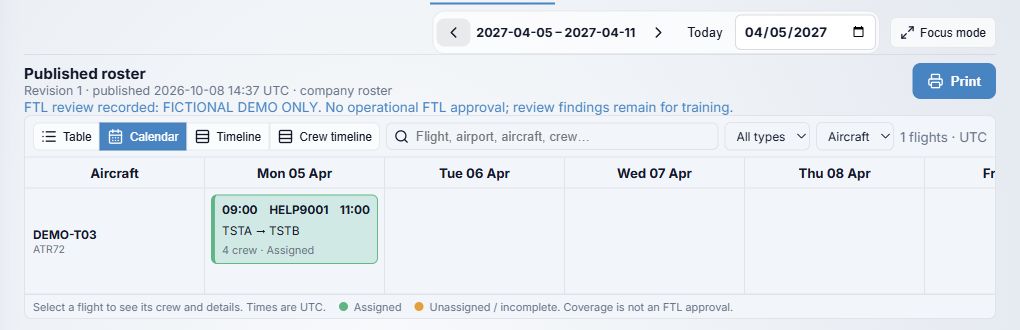
- Open Crew Planning and select Published roster. Use the left and right arrows for Previous week and Next week, Today for the current UTC week, or Jump to schedule date to go to the week containing a date. The header confirms the selected Monday–Sunday range.
- Read Revision, the UTC publication time, and my assignments or company roster. A new publication creates a later revision; edits to a draft do not alter the already published snapshot. The displayed FTL review recorded note, if present, was entered by the planner for that revision. It is a review record, not an automatic approval.
- Select Print to open your browser's print dialog. Check the selected week and revision in the preview before printing or saving a PDF. Printed copies can become outdated after a new revision.
- The Calendar shows each flight under an aircraft or crew row on its day, with UTC times, route, crew count, and coverage label. Select a flight to open its details below the schedule. Green Assigned means its configured crew complement is filled; it is not an FTL approval.
The example's publication note explicitly says it is fictional and has no operational FTL approval. Your organization's current published note and review process govern operational use.
Switch views and find a flight
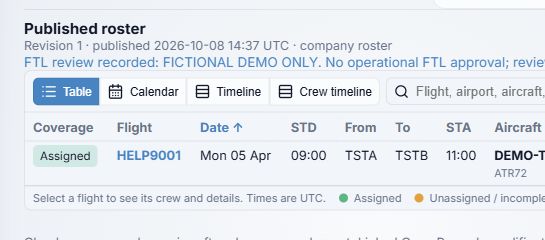
- Choose Table for one row per flight. The visible columns are Coverage, Flight, Date, STD, From, To, STA, and Aircraft. The table continues horizontally to crew role columns; scroll inside the schedule to see them. Select the flight number for the detail card. All times are UTC; an arrival on another date shows that date by STA.
- Select the Date heading to reverse the table order. This changes only your view, not the published revision.
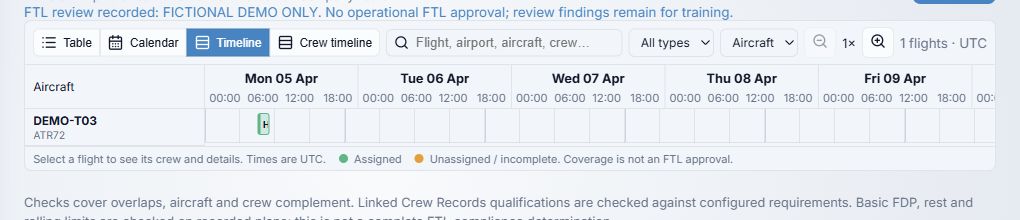
- Choose Timeline for flights positioned along a UTC time axis. Zoom out and Zoom in change its scale from 1× to 3×. Crew timeline changes the grouping to crew; the Group schedule by selector also switches between Aircraft and Crew in Calendar and Timeline. Crew grouping adds filters for crew name, role, and rated aircraft type when crew entries are available.
- Search schedule matches a flight, airport, aircraft, or crew value. Filter aircraft type starts at All types. The count at the end of the toolbar shows matching flights. If it says No flights match these filters, clear the search or type filter. View mode and grouping choices are kept in this browser; they do not change roster data.
Which flights can you see?
- A planner with Create and publish crew rosters access sees the company roster. For other viewers, the company setting controls whether the published response contains my assignments only or the wider company roster. The normal setting is own assignments. A personal roster requires the crew directory entry to be linked to the correct Vega account.
- No roster published for this week means there is no released revision for the selected week. Try the week arrows and confirm the dates. A flight visible in a planner's draft does not count.
- No flights are assigned to your linked account this week means a revision exists but contains no flight returned for your account. Ask the planner to check your assignment and account link if you expected one.
- Unassigned / incomplete indicates missing coverage in the shown schedule. Contact your planner rather than treating the roster's color as a dispatch or legal clearance.
For planners: Set up fleet and crew, Build the weekly draft, then Review and publish.